Remote Work Screen-Share Notification Privacy Audit for 2026
A practical pre-meeting privacy audit for screen sharing: notification silencing, desktop cleanup, browser profile separation, recording warnings, and client-safe defaults.

This guide is current as of 2026-07-01. Screen sharing is one of the easiest remote-work mistakes to underestimate because the meeting still feels private: a familiar calendar invite, a trusted client, a routine standup. But one banner notification, exposed browser profile, file name, chat preview, or recording misunderstanding can disclose client data or personal information. The safest habit is to treat screen share as a small production environment: prepare a clean surface, test the controls, and share the narrowest window that satisfies the meeting.


Decision table
| Situation | First action | Do not do | Escalate when |
|---|---|---|---|
| Routine call | Share one window only | Expose the whole desktop by habit | Client data or recording rules are unclear |
| High-stakes demo | Use a clean browser profile | Rely on last-second tab closing | Private fields must be shown live |
| Notification risk | Enable Focus and test it | Assume banners are hidden | A test alert appears on share |
The five-minute pre-share reset
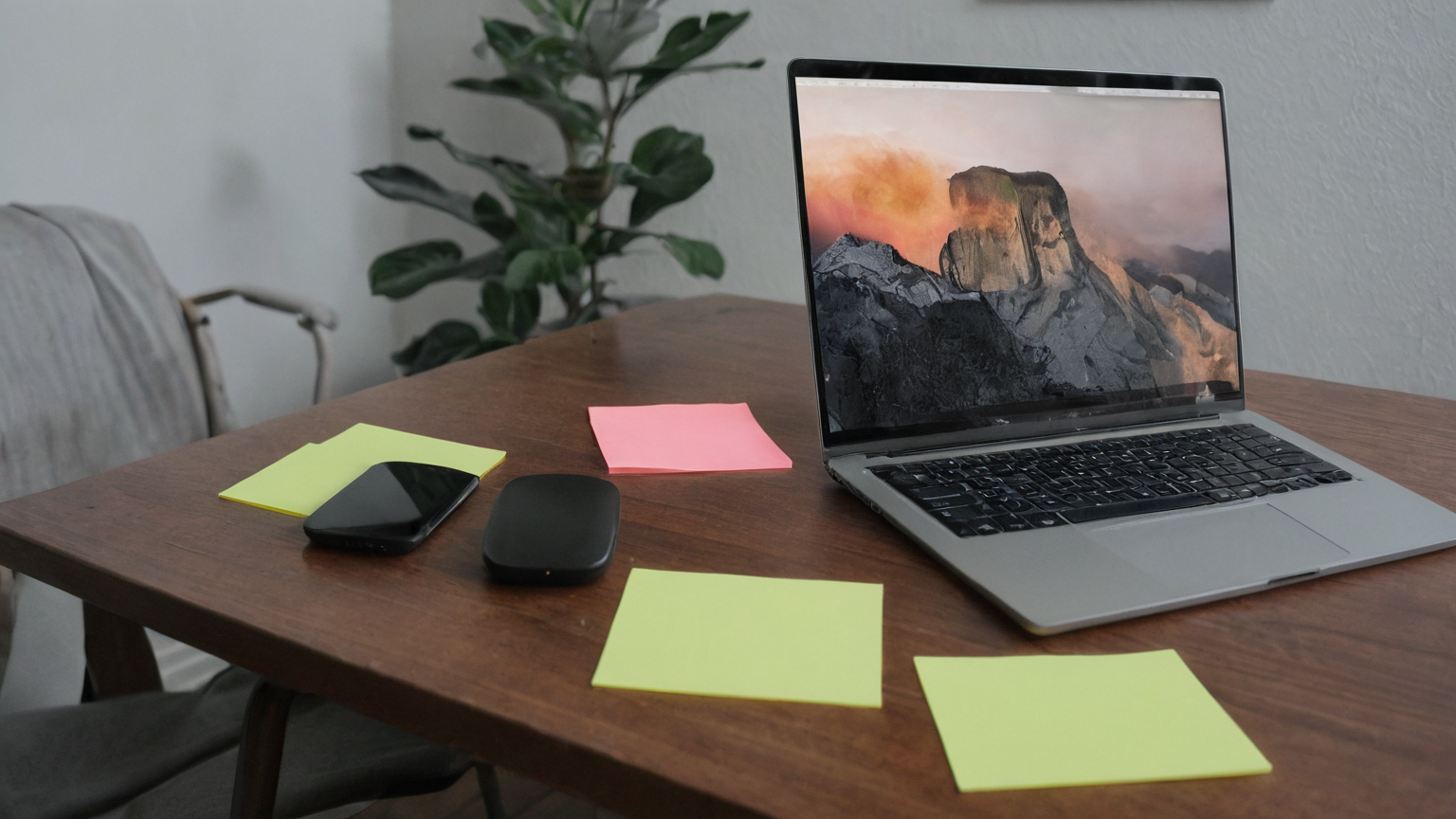
Close unrelated apps, move personal files off the desktop, quit messaging tools that are not needed, and open only the exact browser profile or document set required for the call. If the platform supports sharing a single window, use that instead of the whole display. If you must share the entire display, create a temporary clean desktop or virtual desktop first. This is faster than apologizing after a payroll file name or private chat preview flashes on screen.
Practical checkpoint: keep the action small enough to finish today, record the outcome, and leave a clear note for the next person who may need to help. This keeps the plan useful under stress instead of becoming a long article nobody can apply.
Notification control is a meeting control
Do Not Disturb, Focus, and platform notification settings are not cosmetic. Turn them on before the meeting starts, not after the first alert appears. Check system banners, browser push alerts, email previews, calendar reminders, password-manager popups, and chat mentions. For high-stakes calls, send yourself a test notification from another device while screen sharing a practice window; if the banner appears, the configuration is not ready.
Practical checkpoint: keep the action small enough to finish today, record the outcome, and leave a clear note for the next person who may need to help. This keeps the plan useful under stress instead of becoming a long article nobody can apply.
Separate client work from personal browsing
Use a dedicated browser profile for client calls. Keep only approved extensions, bookmarks, and logged-in accounts in that profile. Do not rely on clearing a tab strip at the last second; autocomplete suggestions, extension badges, and recently closed tabs can still leak context. If the meeting includes vendor dashboards or internal tools, verify whether recording is allowed and whether the client expects screenshots to be avoided.
Practical checkpoint: keep the action small enough to finish today, record the outcome, and leave a clear note for the next person who may need to help. This keeps the plan useful under stress instead of becoming a long article nobody can apply.
Recording and attendee boundaries
At the start of a recorded or transcribed meeting, state what will be shown and ask if sensitive customer data should be masked. A recording indicator is not the same as informed consent in every workplace, and some platforms display share or broadcast status differently by operating system. When in doubt, share a sanitized sample, a staging account, or a screenshot with private fields redacted instead of a live production view.
Practical checkpoint: keep the action small enough to finish today, record the outcome, and leave a clear note for the next person who may need to help. This keeps the plan useful under stress instead of becoming a long article nobody can apply.
After-call cleanup
Stop sharing before opening notes, chat, or email. Move any downloaded client files into the correct folder, delete temporary local copies according to policy, and reset notification settings only after the meeting is fully closed. If something leaked, write down what appeared, who was present, and how long it was visible; then follow your manager, client, or security reporting path promptly.
Practical checkpoint: keep the action small enough to finish today, record the outcome, and leave a clear note for the next person who may need to help. This keeps the plan useful under stress instead of becoming a long article nobody can apply.
Checklist before you close this tab
- Confirm the owner of the next action and the deadline.
- Save evidence in one folder rather than scattered screenshots.
- Use official sources for medical, security, financial, or platform rules.
- Keep private information out of public forums and screenshots.
- Revisit the plan after the first real-world use and remove steps that did not help.
FAQ
Is this professional advice?
No. Use it as a planning checklist and confirm medical, veterinary, security, legal, workplace, or financial decisions with the relevant professional or official channel.
Why so much documentation?
Documentation reduces repeated calls, prevents contradictory instructions, and makes it easier to escalate without relying on memory.
What is the AdSense-readiness angle?
The page is written to solve a specific user problem with sources, caveats, practical tables, and privacy-safe wording rather than thin volume content.
One-week follow-up
After using the plan once, review what was confusing, what took too long, and what depended on a single person being available. Improve one item: a phone number, a folder name, a permission setting, a refill note, or a recovery test. The value of the plan is not perfection on day one; it is making the next stressful event less chaotic and better documented. Repeat the review monthly during the relevant season or whenever your tools, insurer, clinic, employer, device, or household routine changes.