Backup Internet Failover Video Call Plan for Remote Work
A practical 2026 remote-work plan for testing backup internet, hotspot limits, meeting fallbacks, router placement, and team communication before an ISP outage.
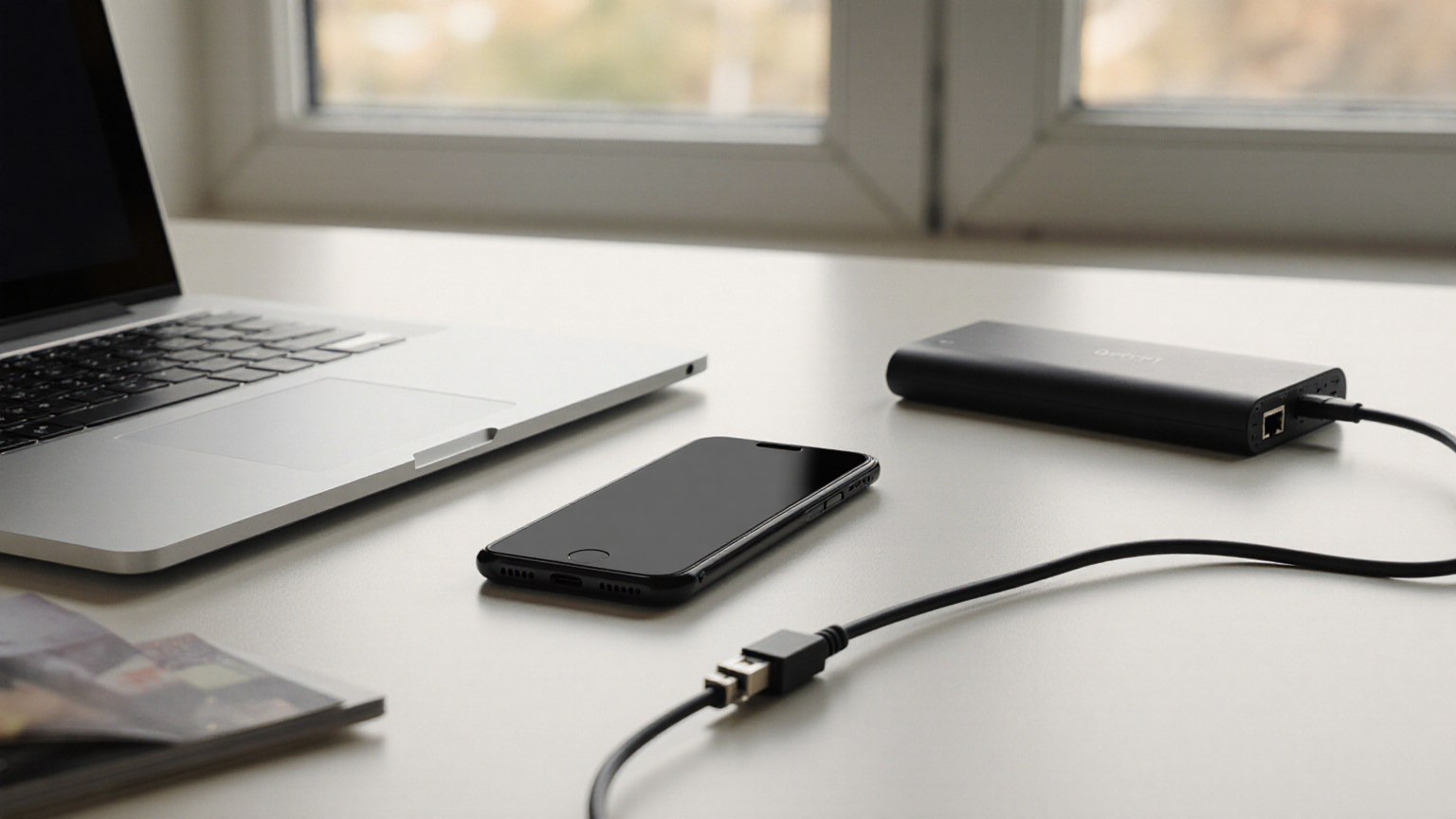
A backup internet plan fails when it is first tested during a client call. The practical goal is not perfect uptime; it is a rehearsed failover path that lets you join, notify, reschedule, or switch to audio within minutes. This June 2026 checklist keeps the plan low drama: know your primary connection, test the backup under realistic load, and write down the meeting fallback before the outage.
Decision table
On narrow screens, scroll this table sideways to read all columns.
| Work pattern | Minimum backup | Extra control |
|---|---|---|
| Occasional internal calls | Tested phone hotspot, charger, audio dial-in | Prewritten Slack or email status line |
| Client-facing video | Hotspot plus alternate meeting device | Calendar note with backup phone number and host handoff |
| Live training or webinar | Second connection or nearby approved workspace | Co-host, local recording, and run-of-show notes |
| Confidential work | Encrypted device, approved network, no public kiosk login | Confirm employer policy before using coworking Wi-Fi |
Measure the real failure points
Do one fifteen-minute test on the same weekday and room where you normally work. Join a test meeting, share screen for two minutes, turn video on and off, and watch whether audio remains stable. Record signal bars, approximate speed, battery drain, and whether the hotspot overheats. A speed test alone does not prove meeting reliability.
Create a two-minute failover drill
Keep the hotspot charged, the USB cable visible, and the laptop set to remember the network only if that is acceptable under your employer policy. Practice: disconnect Wi-Fi, connect to hotspot, reopen the meeting, send the status line, and switch to audio if video is unstable. If the drill takes ten minutes, the problem is not technology; it is missing instructions.
Data and cost guardrails
Video can burn mobile data quickly, especially with screen sharing. Check your plan’s hotspot allowance, throttling policy, and overage terms. If your carrier offers data-only hotspot hardware, compare it with adding a second home ISP. The cheapest backup is not useful if it slows to unusable speeds after one long meeting.
Security boundaries
Do not turn an outage into a security exception. Avoid unknown open Wi-Fi, do not enter work credentials on shared computers, and keep VPN or device-management requirements in place. If a meeting must happen from a cafe, use the approved device, a private hotspot when possible, headphones, and a screen angle that protects sensitive content.
Team communication script
Write this once: My primary ISP is down. I am switching to backup internet now. If video is unstable I will stay on audio and share notes after the call. For client calls, add a co-host handoff sentence. The script prevents silence, which is usually more damaging than a short quality drop.
Monthly readiness check
Once a month, confirm the hotspot still works, the charging cable is not missing, the meeting app is updated, and the backup route is still allowed by policy. Keep notes in a personal ops document, not scattered across chat threads.
Reader trust and scope note
The article avoids pretending there is a universal best device, emphasizes official network/security guidance, and gives readers a repeatable test they can verify themselves.
Router and hotspot placement test
Signal strength changes across a room. Test the hotspot near the window, on the desk, and away from metal shelves or thick walls. If you use a USB tether, verify the cable carries data and power, not just charging. If you use a travel router, label the power adapter and keep the admin password in an approved password manager. Do not put the backup network name or password on a visible sticky note.
Meeting role fallback
For recurring high-stakes meetings, assign a co-host before there is an outage. The co-host can admit participants, share the deck, record if policy allows, and summarize decisions while you reconnect. Put the role in the calendar invite or run-of-show document. A backup connection solves bandwidth; a backup role solves continuity.
What to test in each app
Video apps fail differently. Test screen share, gallery view, audio-only mode, dial-in, file sharing, and chat messages. If your company blocks personal hotspots through policy, document the approved alternative before the outage. If VPN is required, test the VPN over the backup connection because some mobile networks handle corporate tunnels poorly.
Battery and heat plan
A phone hotspot can drain quickly and may throttle when warm. Keep a power bank, short cable, and ventilated placement. Do not bury the hotspot under papers or next to a sunny window. During a long outage, switch to audio, stop unnecessary cloud sync, and close streaming or backup apps that compete with the call.
Documentation for managers and clients
After a failure, send a short incident note: start time, primary ISP status, backup used, meetings affected, and changes you made. This prevents vague blame and supports a budget request if you need a better backup plan. It also creates evidence that you practiced responsible remote-work operations rather than improvising around policy.
Record a failover test that another teammate can repeat
Create a short test record before changing any router or meeting settings. Record the date, room, primary connection, backup connection, laptop, approved VPN state, meeting application, and the person who can host if you disconnect. Use device nicknames rather than serial numbers or network passwords. Describe the work you are protecting: a two-person call, a screen-sharing client session, or a hosted presentation. A successful audio-only test does not establish that every larger meeting will work.
Run the drill on the device you actually use for work. Save your current network settings first, then disconnect only your own laptop from the primary connection; do not interrupt the household router or a colleague’s session. Start a timer, join the approved backup network, confirm the required VPN connects, reopen the test meeting, and send the fallback status message. Record elapsed time and whether audio, screen sharing, and chat worked. Google Meet and Microsoft Teams publish their own network requirements and network preparation guidance; these are prerequisites, not a promise that your carrier or room will deliver a stable call.
Separate connection failure from meeting failure
On narrow screens, scroll this table sideways to read all columns.
| Observation during the drill | First safe check | Fallback if unresolved |
|---|---|---|
| Laptop cannot join the hotspot | Confirm the hotspot is enabled and the approved connection details are correct | Notify the host using the independent communication channel |
| Internet works but the required VPN does not | Compare the error with the employer’s support instructions | Stop confidential work and contact IT; do not bypass VPN policy |
| Meeting joins but speech breaks up | Stop video and nonessential transfers on your own device | Use the meeting’s approved audio alternative or request rescheduling |
| Audio works but presenting fails | Ask the co-host to present the previously approved material | Continue verbally without moving client files to a personal account |
| Backup loses power or becomes hot | Stop the drill and use the device manufacturer’s safe charging guidance | Move the meeting role to the co-host rather than repeatedly reconnecting |
Change one variable at a time and keep the original result. Moving the phone, changing the cable, turning off video, and switching meeting apps together makes the improvement impossible to explain. A useful comparison is the same short screen-sharing task before and after a single change. Record what did not work as clearly as what did. Do not publish credentials, screenshots of private calls, participant names, or client information in the test record.
Define an employer-approved recovery path
Decide what makes the drill a failure before running it. For example, your team might require intelligible audio and a host handoff within an agreed interval, while accepting delayed video. That interval is a team decision, not a universal technical standard. If the agreed requirement is not met, assign an owner to investigate and choose the approved alternative: audio-only participation, a co-host, a different work location, or postponement. Buying another device is not automatically the first repair.
For an actual outage, send the status line as soon as you can, even if the backup is not yet working. State whether you can listen, speak, present, or host; these are different capabilities. Ask the co-host to confirm they have taken over. If the primary connection returns, avoid switching in the middle of an important presentation simply because the Wi-Fi icon reappears. Complete the current task on the stable connection where feasible, then test the primary route privately before returning.
Close the incident with one verified improvement
After the call, record the outage start and end, the backup used, the affected task, the handoff result, and the remaining failure. Compare the actual sequence with the drill: was the cable missing, did VPN negotiation fail, was the co-host absent, or did the data allowance run out? Pick the repair that addresses the observed failure, then rerun that part of the drill. Keep a next-check date and an owner. Do not mark the plan ready because a purchase arrived or a carrier advertised a speed; readiness means the approved workflow has been exercised on your working setup.
Security restrictions remain in force during an outage. Use NIST’s telework security guidance and your employer’s more specific rules when deciding which networks and devices are permitted. This is a suggested self-test workflow, not a claim that this publication measured your connection or tested every carrier.
Visual walk-through


Reader checklist
- Save official-source links before you need them.
- Keep private account numbers, medical details, passwords, and payment data out of shared notes.
- Re-check the latest official guidance if a rule, platform screen, benefit, or health condition changes after June 2026.
- Escalate to the qualified professional for this topic when the situation involves safety, money loss, legal risk, medical care, or account access.