Remote Work Migraine and Light Sensitivity Home Office Plan for 2026
A low-glare remote-work setup for migraine and light sensitivity, with lighting changes, screen habits, meeting boundaries, break design, and escalation signs for professional care.
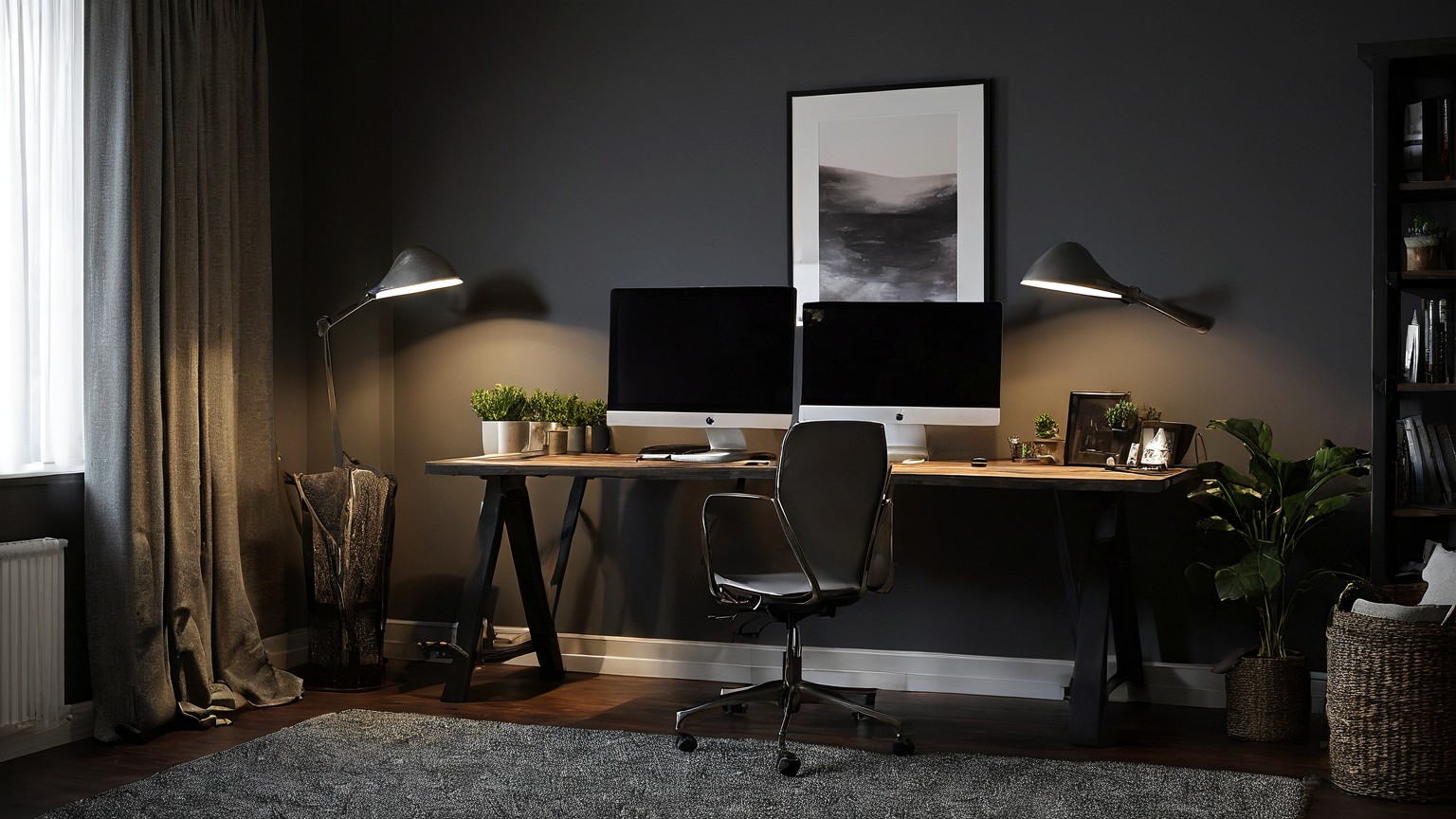
Migraine and light sensitivity can turn a normal remote-work day into a cycle of glare, squinting, missed breaks, and late recovery. The goal is not to buy a fashionable desk lamp. The goal is to reduce visual triggers while keeping work visible, meetings predictable, and escalation signs clear.
As of June 2026, this plan combines office ergonomics guidance with practical home-office controls. It is not medical advice. If headaches are new, severe, changing, associated with neurological symptoms, or interfering with life, use an eye-care or medical professional.
Migraine-trigger adjustment table
| Problem pattern | First low-risk adjustment | What to measure | When to escalate |
|---|---|---|---|
| Screen glare | Move monitor perpendicular to windows and lower harsh overhead light | Reflections visible on dark screen | Persistent pain or vision changes |
| Afternoon headache | Schedule visual breaks before symptoms peak | Time of first symptoms | Worsening frequency or severity |
| Video-call trigger | Reduce bright backgrounds, hide self-view, use agenda notes | Symptoms after calls | Symptoms with dizziness, aura changes, or nausea |
| Eye strain | Increase font size and viewing distance | Squinting and posture | Blurry vision or double vision |
| Light sensitivity days | Use dimmer indirect light and fewer screen-heavy tasks | Work completed without flare | Pattern affects essential job duties |
1. Audit the light before buying gear
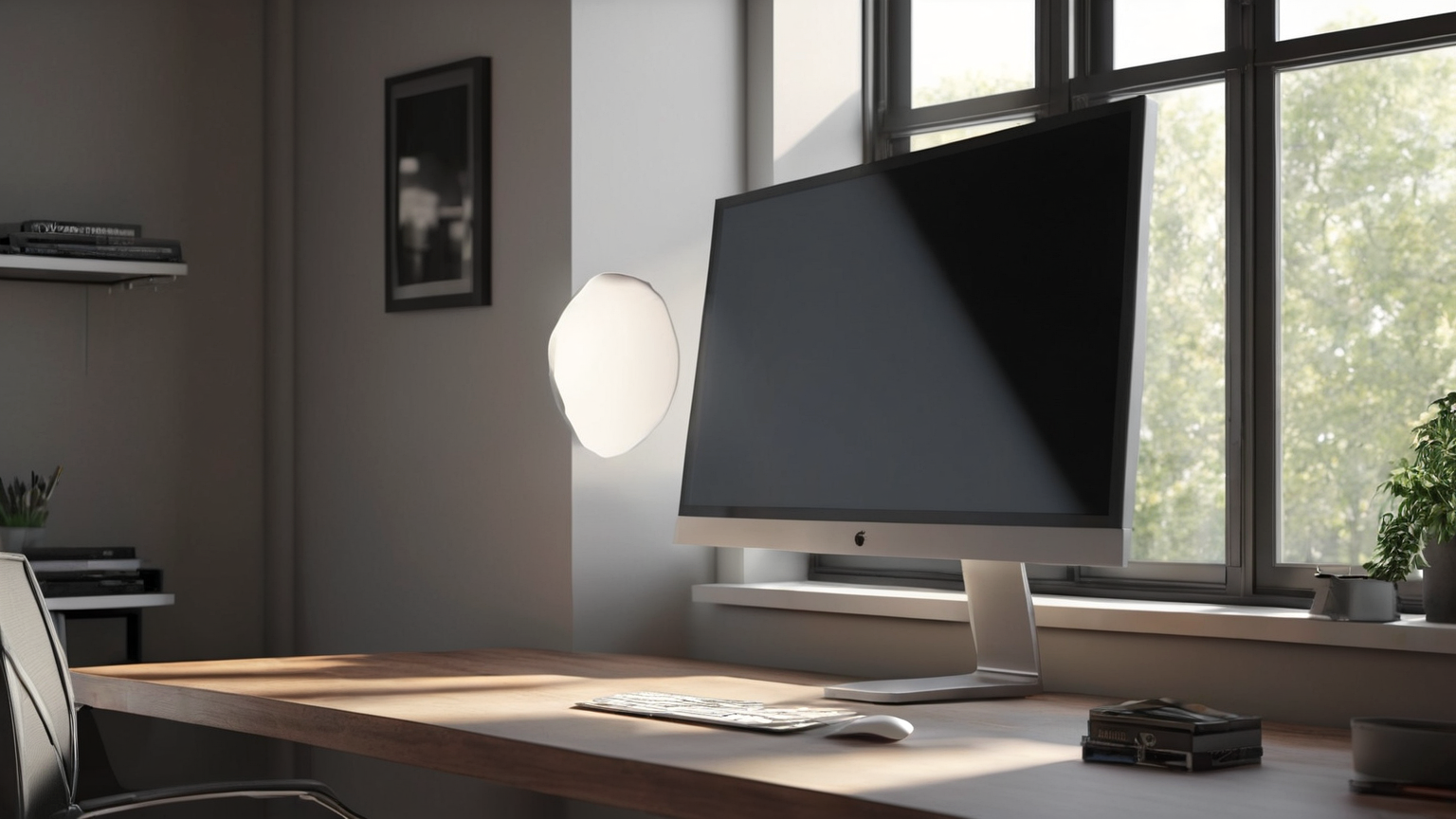
Turn the screen dark and look for reflections. OSHA’s computer workstation guidance emphasizes controlling lighting and glare because excessive light or monitor glare can contribute to eyestrain, headaches, and awkward posture. In a home office, the fix is often rotation and diffusion, not a new monitor.
Place the primary monitor so windows are beside the screen rather than behind or directly in front. Use curtains, blinds, or a shade to soften high-contrast daylight. Avoid aiming a lamp at the screen. If you need task light, aim it at paper or the keyboard zone, not into your eyes.
2. Match screen brightness to the room
A very bright screen in a dim room can feel as harsh as a bright window behind a dark screen. Use a simple rule: the screen should be readable without glowing like a flashlight. Increase font size before increasing brightness. Use dark mode only if it genuinely reduces symptoms for your eyes; some people find high-contrast dark themes worse.
Create two presets: normal work and sensitive-day work. Sensitive-day work can use larger text, fewer panes, lower brightness, warmer indirect light, and a reduced meeting load.
3. Put breaks on the calendar before symptoms peak
Breaks work better when they happen before the headache starts. Use microbreaks between tasks: look away from the screen, stand, relax shoulders, hydrate, and shift focus to a distant object. CDC/NIOSH workplace ergonomics resources support reducing musculoskeletal strain with better setup and movement; for migraine-prone workers, the break also protects visual load.
4. Make video meetings less visually noisy
Video calls combine screen brightness, motion, facial monitoring, and social pressure. Reduce avoidable triggers: hide self-view when possible, avoid animated backgrounds, use a calm physical background, ask for agendas in advance, and switch to audio when video adds no value. If a meeting requires screen sharing, ask for larger zoom and fewer rapid tab switches.
5. Build a sensitive-day task ladder
Not every task has the same visual intensity. Rank work like this:
- Low visual load: calls with notes, audio review, planning, voice memos.
- Medium visual load: writing in large font, reading one document, simple email.
- High visual load: spreadsheets, dashboards, design review, code diff review, rapid chat triage.
On sensitive days, move high-load work to the period when symptoms are lowest, or ask for a deadline adjustment before a migraine becomes an absence.
6. Keep a small kit, but avoid fake certainty
A useful kit might include an unbranded eye mask, water, a dimmable lamp, glasses recommended by an eye professional, and a written plan for when to stop. Do not treat tinted lenses, apps, or filters as universal cures. The American Academy of Ophthalmology and American Optometric Association both emphasize eye-care evaluation when symptoms persist.

Work agreement checklist
- Can you use audio-only for nonessential calls?
- Can agendas be sent before visually demanding meetings?
- Is there a backup reviewer for spreadsheet or design-heavy work on severe days?
- Are deadlines flexible when symptoms escalate?
- Does your manager know which accommodations are practical without needing private medical details?
A one-week experiment plan
Do not change ten variables at once. On day one, photograph the desk with the monitor off so glare is visible, then rotate the monitor or adjust the window covering. On day two, increase font size and reduce app clutter. On day three, test one meeting change such as hiding self-view or using audio-only when appropriate. On day four, schedule breaks before the usual symptom window. On day five, review which change produced the most relief.
Track only practical signals: first symptom time, number of screen-heavy meetings, highest pain level, and whether you had to stop work. This keeps the log useful without turning health tracking into another stressful task.
Manager and team communication
You do not need to share private medical details to request practical work-design changes. A useful message is specific: “Bright screen-sharing sessions late in the afternoon are difficult for me. Could we send the spreadsheet in advance, keep the call to decisions, and allow audio-only when video is not needed?” This frames the request around output and collaboration rather than diagnosis.
For recurring severe symptoms, ask HR or a qualified adviser about formal accommodations. The Job Accommodation Network can help readers understand accommodation ideas, but the final process depends on employer policy, jurisdiction, and medical documentation.
What not to overclaim
Blue-light filters, special glasses, and dark mode can help some workers and do little for others. A high-quality article should not promise a cure from a product. If symptoms are new, one-sided, associated with weakness or confusion, or dramatically different from your usual pattern, treat that as a medical escalation rather than an ergonomics problem.
Example: redesigning a meeting-heavy afternoon
A remote analyst notices that symptoms usually begin after two video calls and a spreadsheet review. The first fix is not a new chair or expensive monitor. The analyst moves the monitor so the window is at the side, changes the spreadsheet zoom from 90 percent to 125 percent, asks for agendas before calls, and blocks a ten-minute recovery interval after screen-sharing meetings. The team still gets the same decisions, but the visual load is spread out.
The analyst also creates a sensitive-day version of the workflow. On those days, dashboards are reviewed in the morning, video is optional unless relationship-building matters, and long documents are printed or read with larger text. The manager receives a work-focused explanation: “These changes help me keep analysis accurate on high-symptom days.” That is more useful than a vague apology after work is already late.
Mistakes that make symptoms worse
Avoid placing a bright monitor in front of a bright window, working in a dark room with a glowing screen, stacking meetings without breaks, and using tiny fonts to fit more panes on one display. Avoid treating every headache as an ergonomics issue; health changes deserve care. Avoid buying gear before testing placement, brightness, breaks, and meeting design because those are the changes most readers can verify immediately.
Maintenance checkpoint
Readers should also keep boundaries clear: this guide supports planning, not professional diagnosis, legal advice, veterinary treatment, financial advice, or cybersecurity incident response. When the stakes are high, the right expert should own the final decision.
Reader trust and scope note
This article is non-commercial and health-boundary aware. It avoids promising medical outcomes from office gear and focuses on environment, task design, and when to seek professional care.