Internet Outage Plan for Remote Work: Meetings, Hotspots, Power, and Updates
A practical remote-work continuity guide for home internet outages, covering router checks, mobile hotspot fallback, meeting triage, power, and async updates.

Updated May 30, 2026. Video platforms, ISP equipment, and employer security rules change. Treat this as a continuity checklist, then adapt it to your company policy, mobile plan, and local backup locations.
A home internet outage becomes expensive when it turns into silence: missed meetings, no status update, drained laptop battery, and frantic troubleshooting with no rollback plan. The better approach is a simple outage playbook you can run in ten minutes: confirm the scope, stabilize power, switch to the lowest-bandwidth meeting mode that still works, send an async update, and decide whether to relocate.
The ten-minute outage triage
| Minute | Action | Goal |
|---|---|---|
| 0-2 | Check one wired or primary device, one phone, and ISP app/status if available | Confirm whether it is Wi-Fi, device, ISP, or power |
| 2-4 | Send a short status message from mobile data | Prevent teammates from guessing |
| 4-6 | Power-cycle modem/router only if appropriate | Fix simple equipment lockups without cable chaos |
| 6-8 | Join audio-only or hotspot if stable | Save urgent participation |
| 8-10 | Decide: wait, switch async, or move to backup location | Avoid losing an hour to random toggling |
Step 1: separate Wi-Fi problems from internet problems
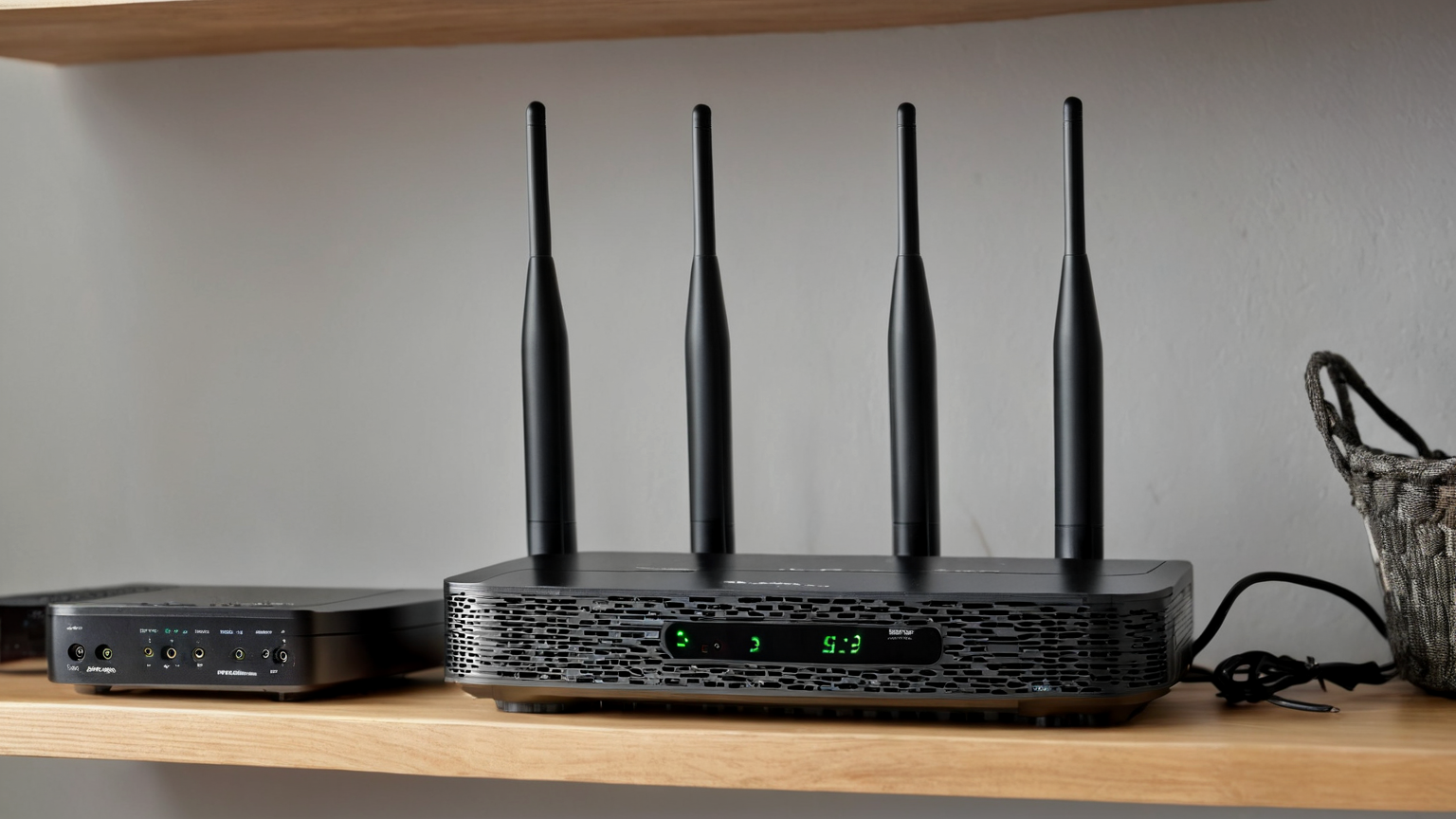
If the laptop disconnects but your phone still works on Wi-Fi, the issue may be device-specific. If every Wi-Fi device fails but modem lights look normal, the router may be the problem. If Wi-Fi connects but pages do not load, the ISP link or DNS path may be down. If the power is out, your plan shifts to battery and mobile data.
Keep a small label-free note in your home office with: ISP app name, support number, router admin URL, where the modem power cord is, and which cable connects modem to router. Do not write passwords on the note. Use a password manager for credentials.
Step 2: use the lowest-bandwidth meeting mode that preserves value
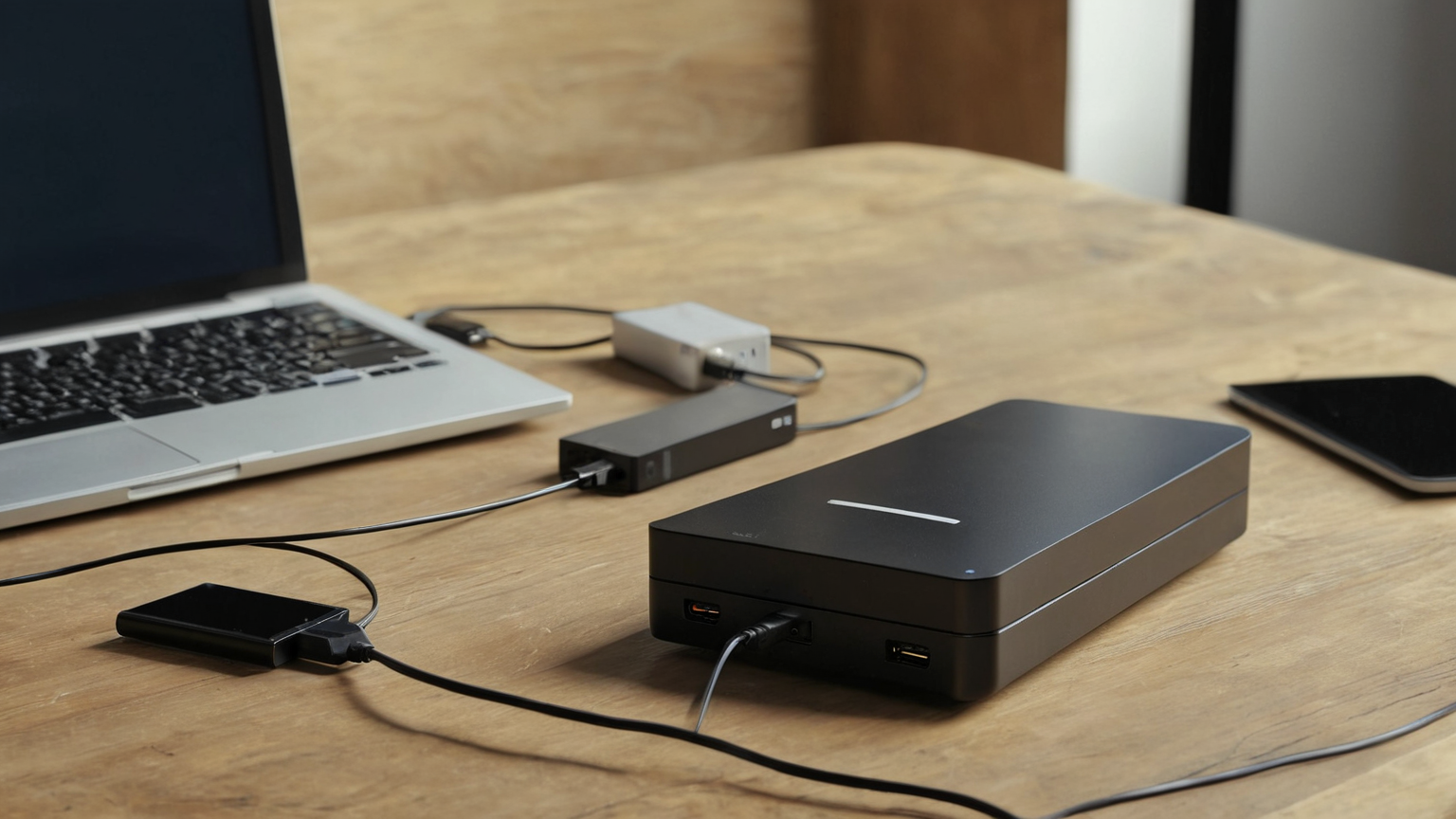
When a connection is unstable, video is optional and clarity is not. Join by phone audio or hotspot, turn off camera, stop screen sharing, close cloud sync, and ask the host to record decisions or move non-urgent items async. Zoom, Microsoft Teams, and Google Meet publish requirements and network guidance, but your real-world hotspot may still fluctuate with congestion, building materials, and carrier coverage.
Use this decision tree:
- Stable broadband: normal meeting.
- Weak broadband: audio-only, no screen share, ask for notes.
- Stable mobile hotspot: join for critical decisions, keep video off.
- Weak mobile signal: send async update, request reschedule or delegate.
- Power outage: protect battery first; avoid burning remaining power on low-value meetings.
Step 3: write the outage status message before you need it

A good message is short, specific, and calm:
Home internet outage started around 9:20. I am on mobile data now. I can join audio for the 9:30 decision items, but video/screen share may be unreliable. I will post written notes by 10:15 if the connection drops.
Create templates for manager, team channel, and client-facing meetings. Include what still works, what may fail, when you will update again, and what decision you need from others. This keeps the outage from looking like absence.
Step 4: prepare a backup location list
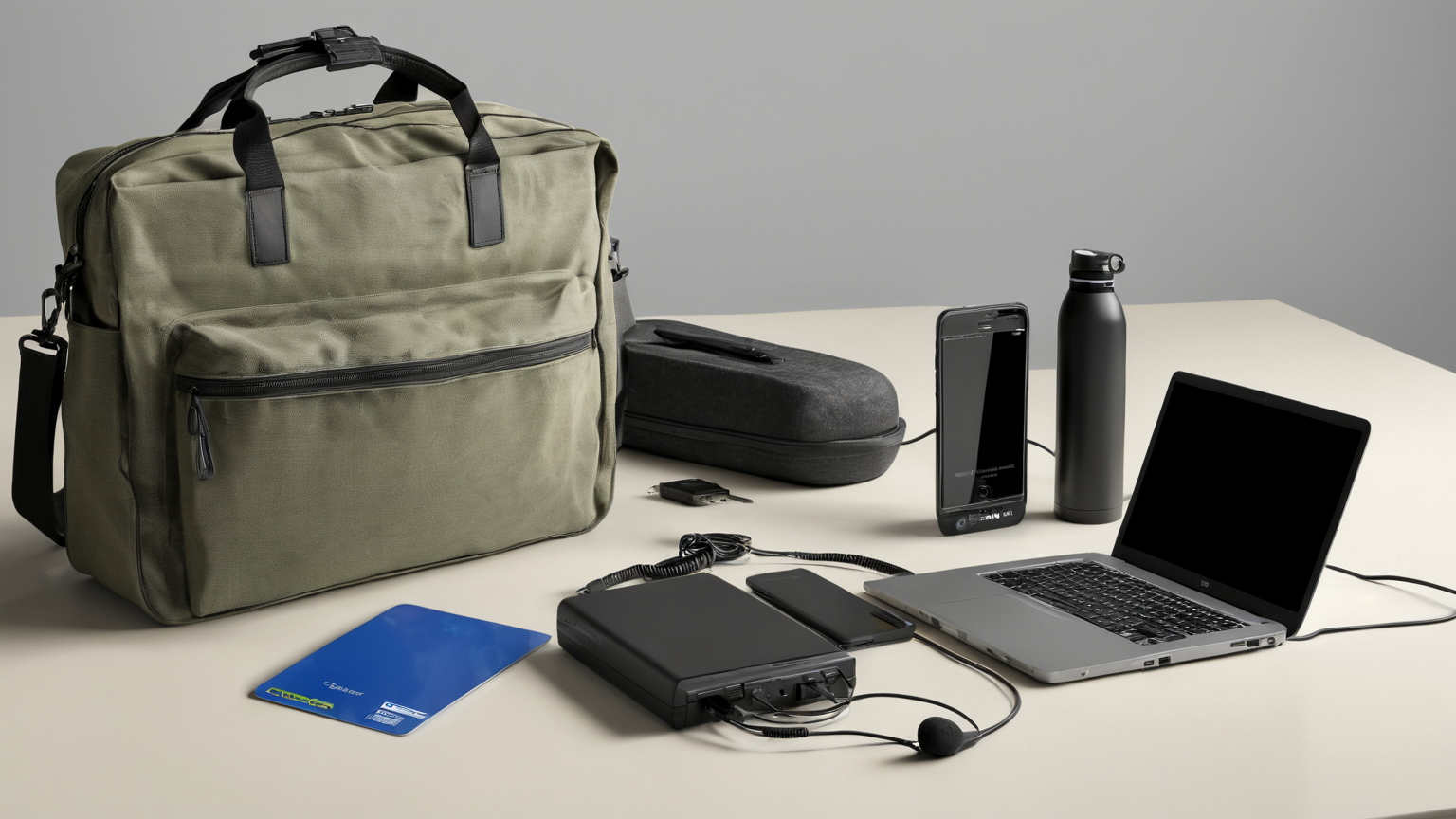
Do not choose your backup location during the outage. List two nearby options: coworking day pass, library room, trusted relative, or office. For each, note travel time, opening hours, call policy, power availability, and whether sensitive work is allowed under employer rules.
Public Wi-Fi can be useful for reading documentation or sending non-sensitive updates, but it is not automatically appropriate for confidential work. Follow company VPN, device management, and data-handling policy. If you cannot meet the policy, switch to phone calls or defer the sensitive task.
Step 5: keep the fallback kit boring
Your kit should include a charged power bank, phone hotspot cable, headset, spare charger, small Ethernet cable if your setup uses one, and a plain offline copy of your outage checklist. Avoid overengineering. A second ISP or cellular router is useful only if the cost matches your job risk and the service is tested monthly.
Security checklist during an outage
- Do not install random remote-access or router-fix tools from search ads.
- Do not weaken router passwords to reconnect devices quickly.
- Keep operating system and meeting apps updated before the outage season.
- Avoid entering credentials on public or unfamiliar captive portals unless necessary and allowed.
- Report suspicious ISP-support calls or texts; outages are a common pretext for scams.
Bottom line
Remote-work resilience is not perfect uptime. It is predictable behavior when uptime fails. Confirm scope, communicate quickly, reduce bandwidth, use mobile fallback only when it adds value, protect power, and move async before troubleshooting consumes the whole work block.