Webcam and Microphone for Video Calls — Wirecutter Testing and What Actually Matters
Wirecutter, RTINGS, and PCMag testing on webcams, microphones, and lighting for video calls. Why microphone matters more than camera, and the realistic budget tiers.

The home office video call setup has matured into a clear hierarchy of impact: audio quality dominates perceived professionalism, lighting transforms how you appear on camera, the webcam itself is third in priority. This article walks through Wirecutter, PCMag, and RTINGS testing data on webcams, microphones, and lighting — and identifies what to upgrade first within typical budgets.
The TL;DR: spend the first $80 on a microphone (Samson Q2U or FIFINE K669B). Spend the next $50-100 on lighting (desk lamp or ring light). Spend the next $80-150 on a webcam (Logitech Brio 300 or similar). Total: $200-300 transforms typical laptop-default video calls.
For complementary home office content, see desk lighting research and home office internet tested.
Audio matters most
Microsoft Teams quality research and audio engineer surveys consistently rank audio higher than video for perceived call quality. Reasons:
- Cognitive load — bad audio forces concentration on parsing speech, exhausting listeners over multi-hour meetings
- Misunderstanding cost — garbled words cause requests to repeat, delay decisions
- Background noise — keyboard typing, HVAC, neighbors picked up by laptop mic
- Echo and gain issues — laptop mics often produce hollow, distant sound even in quiet rooms
The default laptop microphone is universally subpar. Even premium MacBooks with 3-mic arrays struggle with:
- Keyboard typing (1-2 inches from microphone)
- Cooling fan hum during heavy work
- Room echo (especially hard surfaces)
- Distance from mouth (typing position is 12-18 inches from internal mic)
A $40-80 dedicated microphone resolves all four issues immediately.
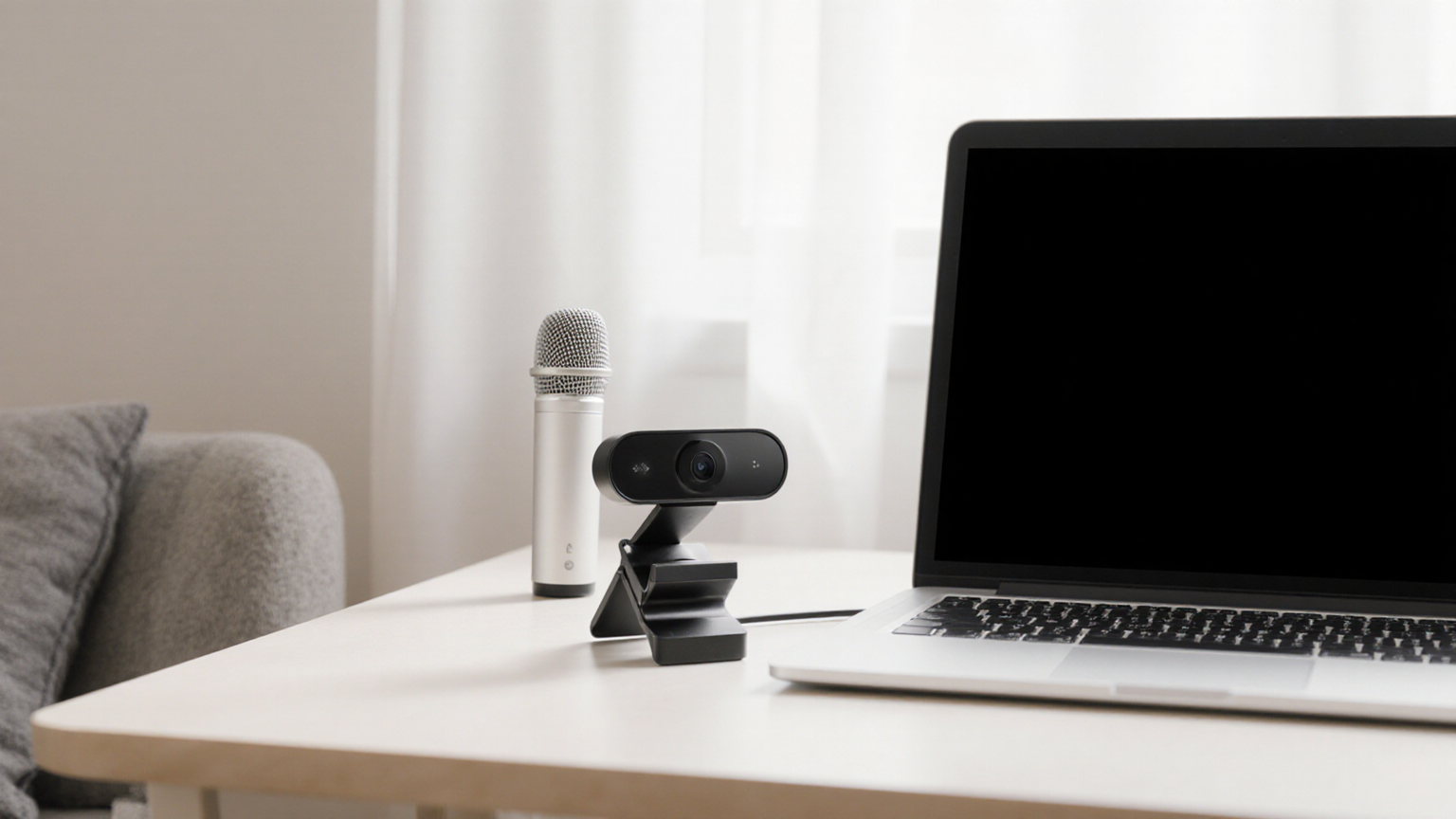
Microphone tiers
Budget USB ($30-80)
Samson Q2U ($60-80)
- Dynamic microphone with both USB and XLR outputs
- Excellent for typical home office (rejects room noise well)
- Wirecutter pick for budget pros
- Future-proof if you upgrade to audio interface later
FIFINE K669B / K670 ($30-50)
- Condenser USB
- Surprisingly good at price point
- Best value for occasional calls
- Wirecutter “best on a budget” alternative
Audio-Technica AT2005USB ($60-100)
- Similar concept to Samson Q2U
- Slightly better build quality
- Dynamic — rejects room noise well
Mid-tier USB ($100-200)
Blue Yeti ($90-120)
- Most popular USB mic
- Multiple polar patterns (cardioid, omni, bidirectional, stereo)
- Good for variety of recording situations
- Wirecutter pick for general use
Shure MV5C / MV7 ($80-260)
- MV5C ($80) is budget; MV7 ($260) is premium
- Excellent voice clarity
- Built-in noise reduction
- Used by many podcasters
Audio-Technica ATR2500x-USB ($150-180)
- Quality condenser
- Solid build
- Good middle ground
Headset alternatives
Jabra Evolve2 65 ($200-280)
- Premium headset, certified for Teams/Zoom
- Active noise cancellation
- Multi-day battery
- For users who prefer headset over standalone mic
Logitech Zone Wired ($100-150)
- Solid mid-tier headset
- Plug-and-play, no software setup
- Good for typical office calls
Apple AirPods Pro 2 ($200-250)
- Surprisingly good for calls
- Convenient if already in Apple ecosystem
- Battery life limits to single calls (4-5 hours total daily use)
What to skip
- Built-in laptop mic — always upgrade
- Cheap Bluetooth headsets under $50 — typically poor microphone quality, latency issues
- Gaming headsets advertised for “streaming” — often have flashy features but mediocre microphones
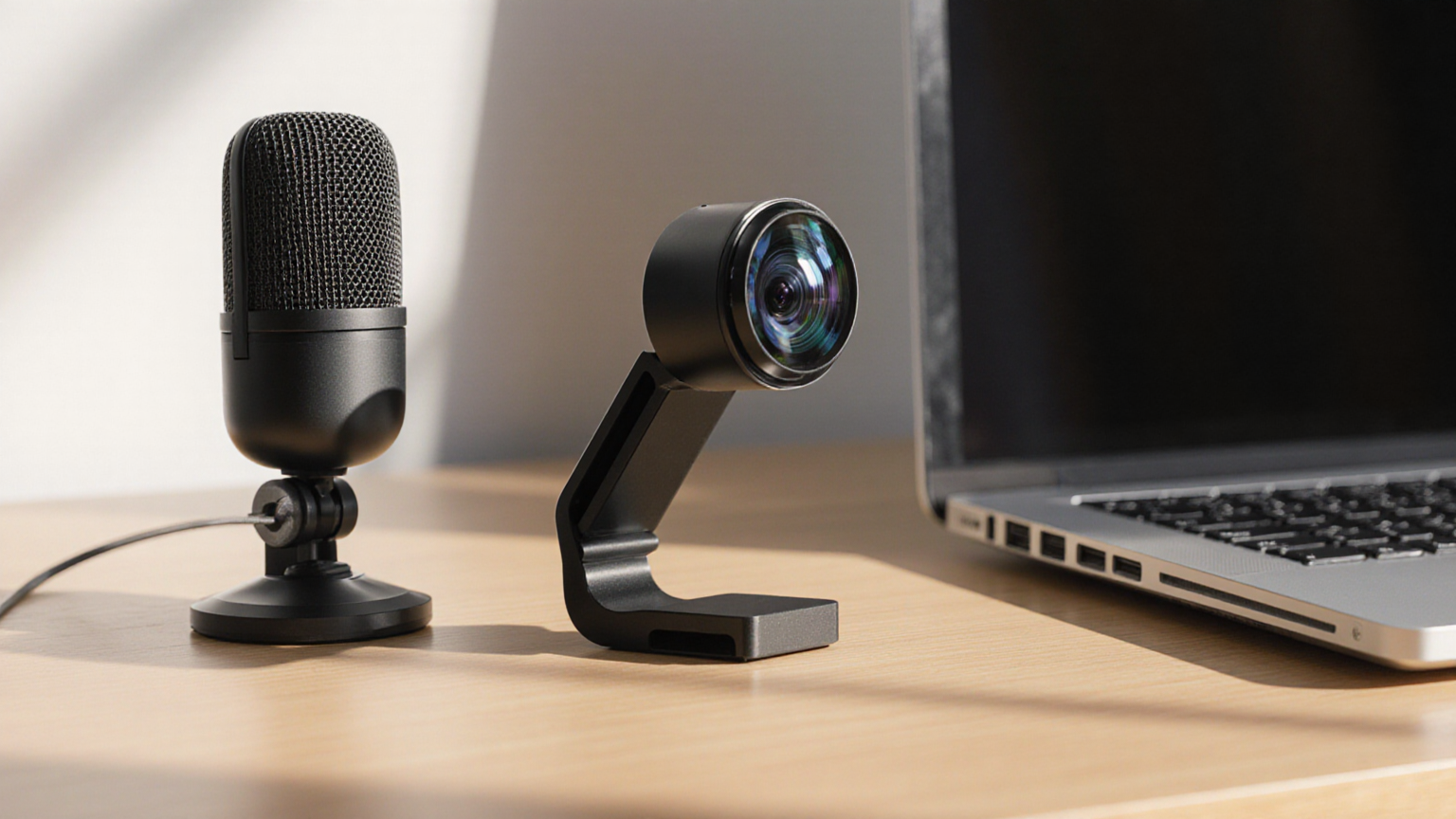
Webcam tiers
Budget ($30-80)
Logitech C920 ($50-70)
- The classic standby — has been the recommended budget webcam for years
- 1080p, decent low-light
- Reliable build
- Wirecutter “still solid budget pick”
EMEET 1080p ($30-50)
- Surprisingly capable for the price
- 1080p, basic auto-focus
- Good if budget is under $50
Mid-tier ($80-150)
Logitech Brio 300 ($80-100)
- 1080p with improved low-light over C920
- Auto light correction
- Good build
- Wirecutter top pick mid-tier
Razer Kiyo Pro ($150-180)
- 1080p with HDR and excellent low-light
- Wide aperture for blurred background (natural)
- Good for dim home offices
Anker PowerConf C300 ($120-150)
- 1080p with AI auto-framing
- Tracks your face during movement
- Solid for dynamic presenters
Premium ($200+)
Logitech Brio 4K ($200-250)
- 4K capable (most calls compress to 720p, so practical benefit limited)
- Excellent low-light
- AI tracking
- Best for content creators or color-critical streaming
Insta360 Link ($250-300)
- Gimbal-stabilized 4K
- AI tracking
- Designed for streaming and presentations
- Overkill for typical calls; great for content creators
Smartphone as webcam
iPhone (with macOS Ventura+ Continuity Camera) and Android (DroidCam, EpocCam apps) can serve as quality webcams using the phone’s superior camera. Setup:
- Mount phone on stand or arm above monitor
- Connect via cable or Wi-Fi to laptop
- Use as webcam in Zoom/Teams/Meet
Pros: phone cameras often beat dedicated webcams on image quality. Cost: nothing additional if you already have a recent phone + a stand ($20-40).
Cons: need to keep phone available, battery drain unless plugged in, some apps glitchy.
For users with recent flagship phones, this is often the best webcam — for free.
Lighting for video calls
Per PCMag testing on video call appearance:
Natural daylight from window
- Best free option
- Position desk so window is in front of you (lighting your face) or to the side
- Avoid window behind you (silhouettes you, exposes the room behind)
- Cloudy day: even lighting, no harsh shadows
Ring light
- Even illumination, popular for video calls and content creation
- Mounted on stand or attached to monitor
Top picks:
- Lume Cube Edge Light ($60-90) — slim panel, mounts on monitor, USB-C powered
- Elgato Key Light Air ($130-180) — premium option, app control, used by streamers
- Anker Webcam-Light Combo ($60-100) — webcam + LED ring built in
- Generic ring light on stand ($30-50) — budget option, often good enough
Desk lamp
- Can substitute for ring light
- Position to side of monitor, lighting your face
- Use cool color temperature (4000-5000K) for daytime calls
- See desk lighting research for detailed lighting
What to avoid
- Overhead light only — creates shadows under eyes, “haunted” appearance
- Light behind you — silhouettes face, picks up dust in air
- Dim room lighting — webcam compensates with grain and noise
- Fluorescent flickering — looks bad on camera (shows oscillation)
Webcam positioning
Per ergonomics and video call etiquette:
Height
- Eye level — top of webcam at eye height
- Looking up at camera = “nostril cam,” looks unflattering
- Looking down at camera (laptop on desk) = double-chin angle, looks unprofessional
Distance
- Webcam should be 18-24 inches from your face
- Too close = wide-angle distortion
- Too far = small face, harder to read expressions
Background
- Tidy or intentional (bookcase, plant, clean wall)
- Avoid: cluttered home items, shared spaces with movement, bathrooms
- AI background blur or replacement covers most cases
Composition
- Frame from chest to slightly above head (similar to professional headshot)
- Center yourself horizontally
- Slight gap above head (“headroom”), not your face crammed at top

Software settings
Quick wins in video call apps:
Zoom
- Settings → Video → Touch Up My Appearance (mild smoothing)
- Settings → Video → Adjust for Low Light (auto)
- Settings → Audio → Background noise suppression (Auto/High)
- HD video on for 1:1 calls (off for large meetings to save bandwidth)
Microsoft Teams
- Settings → Devices → Noise suppression (Low/Auto/High)
- Background → Blur or replace
- Together mode for large meetings (cosmetic but interesting)
Google Meet
- Settings → Audio → Noise cancellation (on)
- Visual effects → Background blur or replace
- Lighting adjustment (auto)
These software features dramatically improve call quality without hardware changes. Always have noise suppression on; it filters HVAC, fan noise, and ambient room sounds.
Internet quality
Per Microsoft Teams network requirements (cross-reference with home office internet tested):
- Group video requires 1.5 Mbps up + 1.5 Mbps down minimum
- HD group video requires 2.5 Mbps up + 4 Mbps down
- Latency under 100 ms for natural conversation; under 50 ms ideal
If video calls feel laggy despite good hardware, check:
- Internet speed (run Speedtest)
- Wired ethernet vs Wi-Fi (wired more reliable)
- Other devices on network using bandwidth (streaming, large downloads)
- Router placement (Wi-Fi degrades fast with distance)
Realistic budgets
Minimum viable upgrade ($50-80)
- USB microphone (FIFINE K669B at $30, or upgrade laptop’s existing webcam usage)
Solid upgrade ($150-250)
- Samson Q2U or Blue Yeti microphone ($80-100)
- Logitech Brio 300 webcam ($80)
- Optional: $40-60 ring light
Premium home office ($300-500)
- Shure MV7 microphone ($260) or Jabra Evolve headset
- Logitech Brio 4K or Insta360 Link
- Elgato Key Light Air
Streamer/content creator ($600+)
- Audio interface + XLR mic (Shure SM7B + Focusrite Scarlett)
- Insta360 Link or DSLR as webcam
- Multiple key lights
- Acoustic treatment
For typical office workers, the $150-250 tier delivers ~95% of premium quality at 30-40% of the cost. Returns diminish significantly above $300.
Bottom line
Priority order for typical home office video call upgrades:
- USB microphone — $40-100 — biggest single quality improvement
- Webcam at eye level — laptop stand or external webcam, $20-100
- Lighting — desk lamp or ring light, $40-100
- Software settings — noise suppression, low-light adjustment, background blur (free)
- Wired ethernet if Wi-Fi unreliable — $0-30 for cable
Total transformation budget: $150-250.
For complementary home office content, see desk lighting research and home office internet tested.
Video-call gear worth upgrading from the built-in laptop hardware
Built-in laptop webcams + omnidirectional mics are the single biggest weakness in most remote work setups. Three upgrades materially improve perceived professionalism in 1:1 and team calls:
Logitech Brio 4K Pro Webcam
Price · $170-220 — top end for video calls
+ Pros
- · 4K UHD at 30fps, 1080p at 60fps — the only 4K webcam under $250 worth buying
- · HDR adapts to backlit windows and harsh office lighting automatically
- · Pairs with Logi Tune software for granular controls
− Cons
- · Premium pricing — many calls don't capture 4K
- · USB-A connector by default (use included USB-C adapter for newer laptops)
Paid affiliate link. Price, availability, and ratings can change; verify details on the retailer page before buying.
Shure MV7 USB/XLR Podcast Microphone
Price · $240-280 — dual-mode mic for serious upgrade
+ Pros
- · USB + XLR — plug into laptop now, upgrade to audio interface later
- · Cardioid pattern rejects keyboard noise and room echo
- · Built-in EQ presets via ShurePlus MOTIV app
− Cons
- · Requires boom arm + shock mount for best results (not included)
- · Pricey vs entry-level USB mics like Blue Yeti
Paid affiliate link. Price, availability, and ratings can change; verify details on the retailer page before buying.
Elgato Key Light Air (Pair for Even Coverage)
Price · $130 each — eliminates harsh shadows on calls
+ Pros
- · 1400 lumens, 2900-7000K color temp, app-controlled via WiFi
- · Edge-lit panel reduces glare on glasses-wearers
- · Stream Deck integration for one-button on/off during calls
− Cons
- · Need two for symmetrical lighting (3-point setup is best)
- · Premium price vs basic ring lights
Paid affiliate link. Price, availability, and ratings can change; verify details on the retailer page before buying.
For most home offices, the Brio 4K + MV7 + a single Key Light Air covers the 80/20 of perceived call quality. Add the second Key Light only if you do recorded video content for work, not live calls.