USB-C Dock vs Thunderbolt Dock — 2026 Compared for WFH
USB-C and Thunderbolt 4 docks compared for laptop home office setups — port count, monitor support, power delivery, and the spec differences that actually affect daily use.
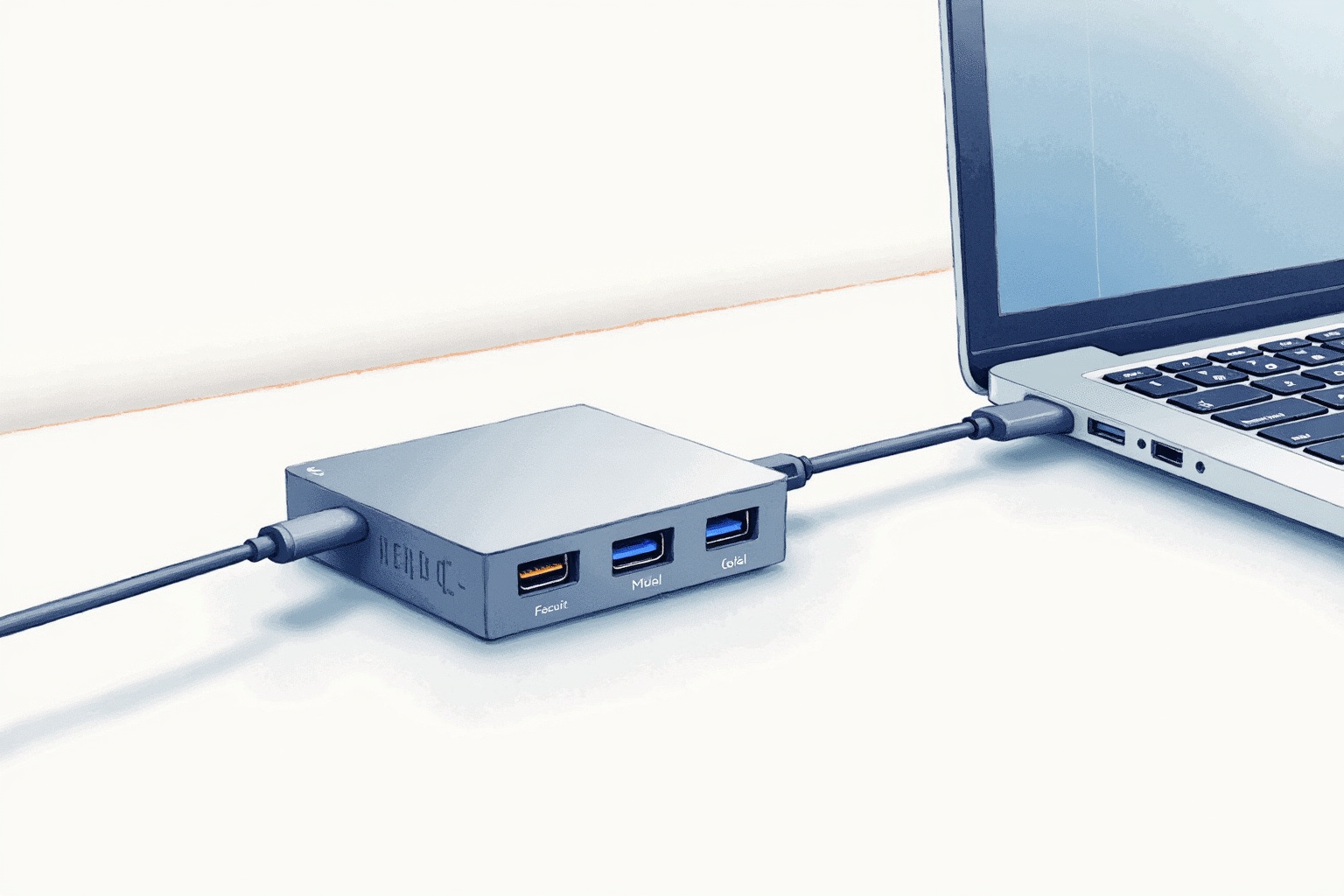
The single-cable laptop dock is the defining productivity upgrade for the modern home office. Closing the laptop, plugging in one USB-C cable, and having dual monitors, ethernet, keyboard, mouse, audio, and laptop charging all activated simultaneously — that experience justifies the $150-400 dock investment within a week of use.
The choice between USB-C and Thunderbolt docks depends on monitor count, peripheral bandwidth needs, and laptop compatibility. Most home offices land in the USB-C category; the Thunderbolt premium is justified only for heavy multi-monitor or pro-grade peripheral setups.
- USB-C vs Thunderbolt 4 — bandwidth, monitor support, and use cases
- Power Delivery requirements for different laptop classes
- Multi-monitor configurations and their dock requirements
- Port count and connectivity priorities for home office
- Top picks across $130-400 budget range
USB-C vs Thunderbolt 4 — the bandwidth difference
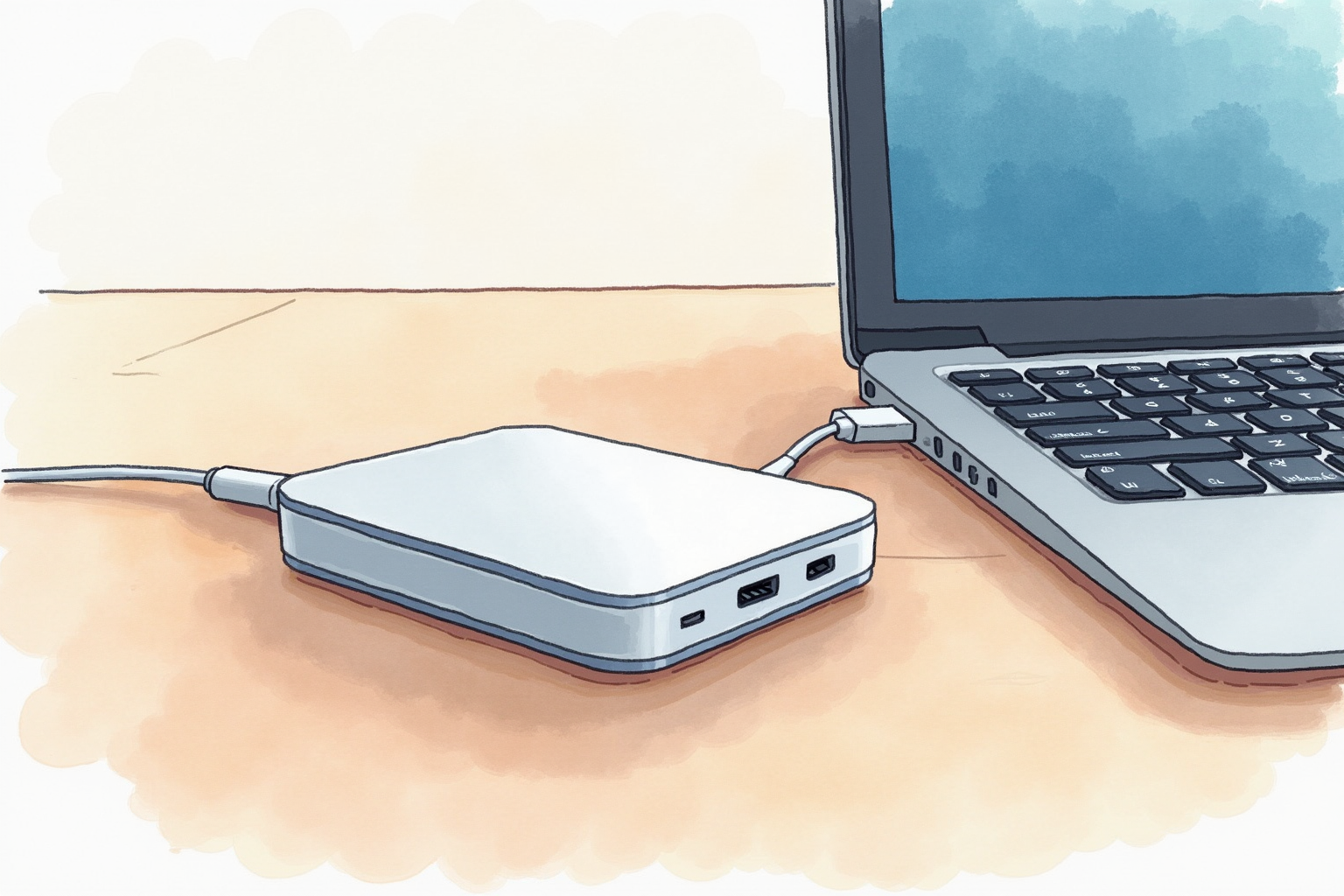
USB-C is a physical connector specification. Thunderbolt is a protocol that runs over USB-C connectors. A USB-C port can carry data via USB 3.x, USB 4, or Thunderbolt protocols depending on the chipset.
For home office docks, the practical difference comes down to bandwidth:
USB-C 3.2 Gen 2 (most consumer USB-C docks): 10 Gbps total bandwidth. Enough for 1 external monitor at 4K 60Hz plus typical peripherals, or 2 external monitors at 1080p/1440p 60Hz. Most home office setups fit comfortably in this category.
USB-C with DisplayLink (Anker 778, Plugable UD series): 10 Gbps data plus 2x DisplayPort outputs that bypass the native bandwidth limit by using compression. Enables 2x 4K monitors at 60Hz from a single USB-C connection on laptops that don’t natively support it.
Thunderbolt 4 (CalDigit TS4, OWC TB4 Dock): 40 Gbps total bandwidth. Enables 2x 4K 60Hz monitors natively (no compression), high-bandwidth peripherals (external SSDs at 3+ GB/s, eGPU enclosures, professional audio interfaces), and daisy-chained device support.
For typical home office use — laptop + dual 1080p/1440p monitors + standard peripherals — USB-C 3.2 is sufficient. For 4K dual-monitor setups, USB-C with DisplayLink works. Thunderbolt 4 becomes worthwhile only for users who push bandwidth-intensive peripherals.
Power Delivery — match the laptop’s requirements

A dock that does not provide enough power to the laptop produces a frustrating “slow charging” or “discharging while plugged in” condition. The Power Delivery (PD) rating must meet or exceed the laptop’s charger rating.
60W PD (entry-level docks): covers Dell XPS 13, ThinkPad X1 Carbon, Microsoft Surface Laptop, and similar ultrabooks. Insufficient for MacBook Pro or heavy-power Windows laptops.
90-100W PD (mid-range docks): covers MacBook Pro 14-inch (M-series), most Dell XPS 15/17 (when not under heavy GPU load), and most workstation laptops at idle. The most common rating for premium home office docks.
140W PD (Thunderbolt docks for pro use): covers MacBook Pro 16-inch (M-Pro and M-Max chips), high-end gaming laptops, mobile workstations with discrete GPU. Required for fast-charging or sustained heavy-load operation of these systems.
Check the laptop’s original charger wattage — the dock should provide at least that. Slightly higher is fine; slightly lower works for light use but fails during heavy workloads.
Multi-monitor configurations
The number of external monitors a dock can drive depends on the host laptop and the dock’s display capabilities.
Single external monitor: Any USB-C dock handles this. Up to 4K 60Hz is standard.
Dual external monitor (Windows): Most Windows ultrabooks support dual external monitors via USB-C DisplayLink docks. Native multi-monitor support varies by chipset; verify your laptop’s documentation.
Dual external monitor (MacBook M-series): M-series MacBook chips have specific limitations. Base M1/M2/M3 support 1 external display. M-Pro and M-Max chips support 2-4 external displays. Use DisplayLink-based USB-C docks to bypass the base-chip limit, but be aware that DisplayLink uses software-based compression that adds slight latency (not noticeable for office work, noticeable for gaming or video editing).
Triple external monitor or more: Thunderbolt 4 docks plus a daisy-chain Thunderbolt monitor, or USB-C docks with DisplayLink chips supporting 3+ outputs (Plugable UD-7400PD has 4 monitor outputs). Specialized setups requiring careful chipset matching.
Port count and connectivity priorities

The dock’s port complement determines how it integrates with the existing peripherals. The priority order for most home offices:
Display outputs (2 minimum): HDMI 2.1 or DisplayPort 1.4 for each external monitor. HDMI is more compatible with TVs and budget monitors; DisplayPort is preferred for productivity monitors and supports daisy-chaining.
USB-A ports (4 minimum): For wired keyboard, mouse dongle, webcam, occasional USB drives, and similar peripherals. USB 3.x at 5 Gbps is sufficient.
Gigabit Ethernet: For stable internet during video calls. Wi-Fi works for most desk work but introduces variability that wired connection eliminates.
3.5mm audio jack: For wired headphones or external speakers. Useful even with Bluetooth headphones as a backup.
SD card reader: For photographers and content creators. Skippable for general office use.
Front-panel USB-C (premium): Fast access to peripheral connection without reaching behind the dock.
The CalDigit TS4 represents the maxed-out feature set; mid-range Anker and Plugable docks cover the essential set without the premium.
Top picks across budgets
Anker 778 USB-C Docking Station (Power Expand 13-in-1)
Price · $200-260 — best mid-range USB-C pick
+ Pros
- · 13 ports including dual 4K HDMI, gigabit ethernet, SD card
- · 100W USB-C Power Delivery — charges MacBook Pro 14-inch
- · Front-panel USB-C for fast peripheral connection
− Cons
- · Power brick is bulky — dock plus brick take significant desk-back space
- · Dual 4K 60Hz requires DisplayLink driver on some laptops
Price, availability, and ratings can change; verify details on the retailer page before buying.
CalDigit TS4 Thunderbolt 4 Dock
Price · $350-430 — best Thunderbolt premium pick
+ Pros
- · 18 ports including 3 Thunderbolt 4 downstream, dual DisplayPort 1.4
- · 98W Thunderbolt PD — charges MacBook Pro 16-inch
- · Multi-host capable — switches between two laptops via button
− Cons
- · Premium price compared to USB-C alternatives
- · Thunderbolt host required for full bandwidth — not all laptops have it
Price, availability, and ratings can change; verify details on the retailer page before buying.
Plugable UD-7400PD USB-C Docking Station
Price · $130-180 — best budget USB-C pick
+ Pros
- · 12 ports including 4 monitor outputs (DisplayLink-based)
- · 100W Power Delivery for laptop charging
- · Reliable Plugable brand with strong customer support history
− Cons
- · DisplayLink requires driver installation on macOS and adds slight latency
- · Build quality is plastic — less premium feel than CalDigit or Anker
Price, availability, and ratings can change; verify details on the retailer page before buying.
The buying decision
For most home office laptops with one or two 1080p/1440p monitors and standard peripherals, the Anker 778 at $200-260 hits the sweet spot. Twelve ports cover any reasonable home office setup, 100W PD charges most laptops, and the price is reasonable compared to Thunderbolt premium.
For Thunderbolt-host laptops (MacBook Pro M-series, ThinkPad X1 Extreme, premium Dell XPS) with 4K dual-monitor setups, the CalDigit TS4 at $350-430 justifies the premium through native 4K dual-monitor support without DisplayLink, 98W charging, and the multi-host switch capability for users with both personal and work laptops.
For budget-conscious setups with quad-monitor needs, the Plugable UD-7400PD at $130-180 delivers four monitor outputs via DisplayLink at lower cost than any Thunderbolt alternative. The DisplayLink trade-off (driver requirement, slight latency) is acceptable for office work.
Avoid no-name docks under $80 — power delivery reliability and chipset compatibility issues concentrate at that price tier. The dock is the central hub of the home office connectivity; it’s worth paying for reliability.
The right dock disappears into the workflow. Plug in once, work all day, unplug once at the end — the dock makes the laptop work like a desktop without the desktop’s compromise of stationary location. The investment pays back the first week of daily use.