Monitor Size and Refresh Rate — RTINGS Testing Data and Cornell Eye Strain Research
RTINGS monitor reviews, Cornell Vision Research on screen distance and size, and what 27-inch 4K vs 32-inch 1440p actually delivers for productivity work.

The home office monitor market is mature and well-tested. RTINGS, Wirecutter, and Tom’s Hardware test extensively, and Cornell Ergonomics Lab publishes research on optimal viewing setup. This article walks through what the data shows — size, resolution, refresh rate, ergonomic placement — and identifies which setups actually fit different home office workflows.
The TL;DR: 27-inch 4K is the sweet spot for most productivity work. Higher refresh rates (120 Hz+) are gaming features, not productivity ones. Dual 27-inch typically beats single 32-inch for office workflows. Ultrawide makes sense for specific multi-pane workflows. Vertical orientation is useful for coding and document review.
For complementary home office content, see ergonomic chair data and home office internet tested.
Cornell ergonomic guidance
Per Cornell Ergonomics Lab and OSHA Computer Workstations eTool:
Viewing distance
- 24-30 inches from eyes (about arm’s length)
- Closer = eye strain over time, increased convergence demand
- Further = harder to read small text without leaning forward
Screen height
- Top of screen at eye level when looking straight ahead
- For monitors: typically 4-6 inches above desk surface (most users need a stand or VESA mount)
- For laptops: virtually always need an external monitor or laptop stand to reach proper height
Screen tilt
- Slight backward tilt (10-20 degrees) is comfortable
- Avoid forward tilt that causes glare from overhead lighting
Multi-monitor placement
- Primary monitor directly in front (most-used screen)
- Secondary monitor angled toward the user
- Equal height across monitors to avoid head-tilting between them
Distance × size relationship
At 24-30 inches viewing distance:
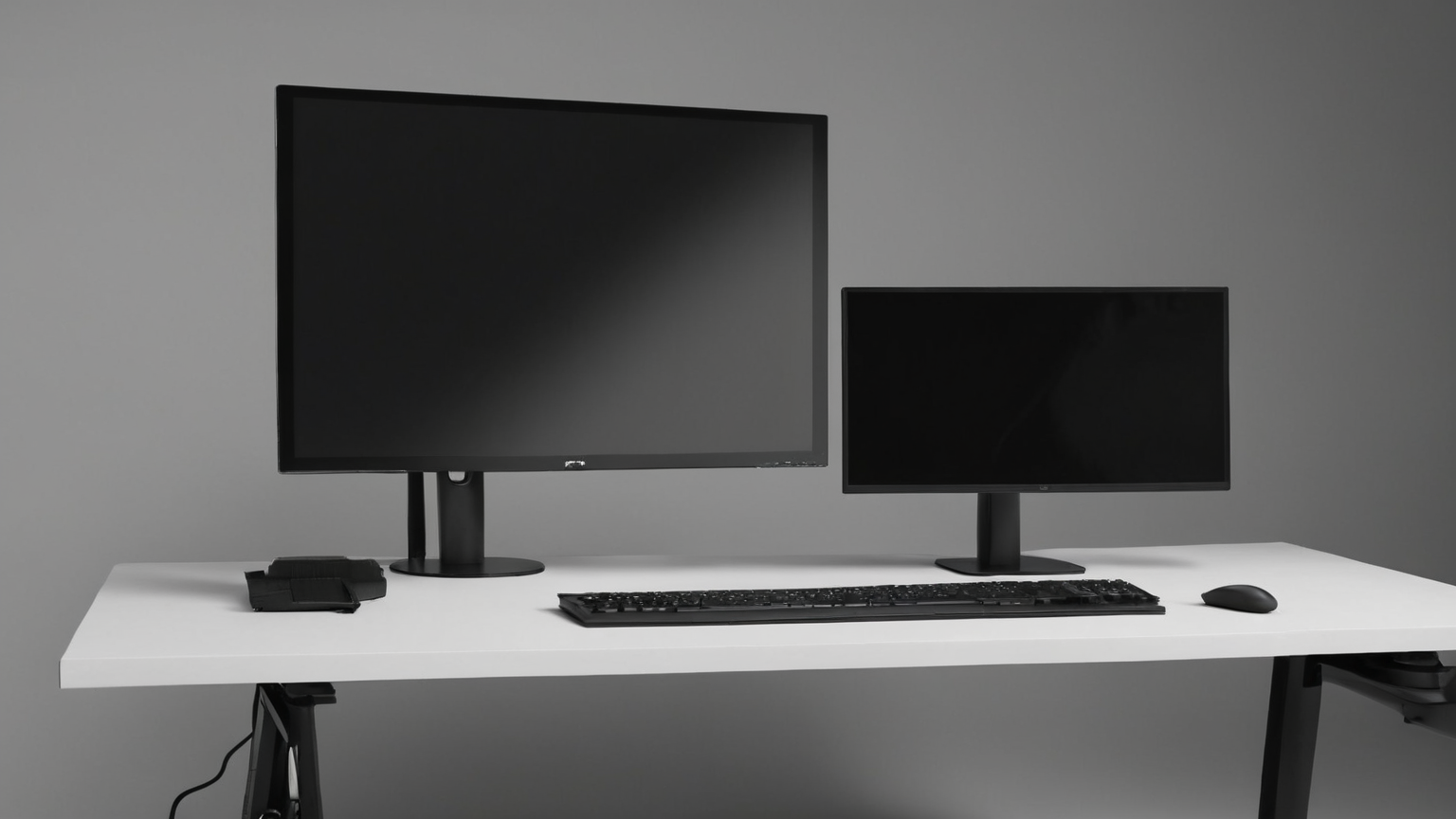
- 24-inch monitor: comfortable single screen, good for budget-conscious or smaller desks
- 27-inch monitor: most ergonomic for typical desk depth
- 32-inch monitor: requires sitting back or more frequent head turning
- 34-inch ultrawide: works at typical distance because curvature is horizontal

Resolution explained
Resolution is total pixels (e.g., 3840x2160 = 4K). Pixel density (PPI = pixels per inch) is what determines visual sharpness at a given size. PPI calculation:
| Size + Resolution | PPI | Visual experience |
|---|---|---|
| 24-inch 1080p (FHD) | 92 | Visible pixels, dated for 2024+ |
| 24-inch 1440p (QHD) | 122 | Sharp, comfortable |
| 27-inch 1080p | 82 | Pixely, avoid |
| 27-inch 1440p | 109 | Standard productivity, good |
| 27-inch 4K (UHD) | 163 | Very sharp, crisp text |
| 32-inch 1440p | 92 | Acceptable, but text noticeable |
| 32-inch 4K | 138 | Sharp, large workspace |
| 34-inch ultrawide 1440p (3440x1440) | 109 | Equivalent to 27-inch 1440p extra wide |
| 38-inch ultrawide 4K (3840x1600) | 111 | Equivalent density, very wide |
Sweet spots for productivity:
- 27-inch 4K (163 PPI) — best text clarity
- 32-inch 4K (138 PPI) — bigger workspace, still sharp
- 34-inch 1440p ultrawide (109 PPI) — wide multi-pane
Avoid for productivity:
- 27-inch or 32-inch 1080p (under 100 PPI, pixels visible)
- 24-inch 1080p (acceptable for casual use, dated for office)
Refresh rate
| Refresh rate | Best use | Productivity benefit |
|---|---|---|
| 60 Hz | Office, productivity | Sufficient |
| 75 Hz | Office, very light gaming | Slight smoothness improvement |
| 120 Hz | Gaming + productivity | Smoother scrolling, no productivity gain |
| 144 Hz | Gaming | Premium gaming smoothness |
| 240 Hz | Competitive gaming | Specialist tier |
For pure office use, 60 Hz is fully sufficient. Refresh rate doesn’t affect text clarity, color reproduction, or workspace size — it affects motion smoothness primarily relevant to gaming and fast video.
The premium for 120-144 Hz productivity monitors is typically $150-300 over comparable 60 Hz. If you don’t game on the monitor, save the money for higher resolution or better panel quality.
Panel types
Three main panel types:
IPS (In-Plane Switching)
- Best color accuracy
- Wide viewing angles (color stays consistent off-axis)
- Slightly slower response time vs TN
- Most modern productivity monitors are IPS
VA (Vertical Alignment)
- Best contrast ratios (deeper blacks)
- Slightly narrower viewing angles than IPS
- Common in larger monitors (32-inch+) and ultrawides
- Good for video and dark scenes
TN (Twisted Nematic)
- Fastest response time
- Lower color accuracy and viewing angles
- Cheapest
- Used mostly in budget gaming monitors
For office productivity, IPS is the default choice. VA is fine and sometimes better for large monitors and entertainment. TN should be avoided for color-critical work.

Top picks (Wirecutter + RTINGS composite)
27-inch 4K productivity (sweet spot)
Dell U2723QE / U2725QE ($550-650)
- 4K, IPS, 60 Hz
- USB-C with 90W power delivery (single cable to laptop)
- Excellent build quality, 3-year warranty
- Wirecutter top pick for productivity
LG 27UN850-W / 27UP850-W ($400-500)
- 4K, IPS, 60 Hz
- USB-C 90W
- Great color accuracy
- Slightly less premium build than Dell
ASUS ProArt PA279CV ($450-550)
- 4K, IPS, 60 Hz
- Color-accurate (Delta E under 2)
- Hardware calibration
- Best for color-critical work (design, photo)
32-inch 4K (larger workspace)
Dell U3223QE ($700-900)
- 4K, IPS, 60 Hz
- USB-C 90W
- KVM built-in (switch between two computers)
LG 32UN880-B (UltraFine Ergo) ($550-700)
- 4K, IPS
- Built-in adjustable arm
- USB-C with PD
- Wirecutter “ergo” pick
Ultrawide
Dell U3425WE ($900-1,100)
- 34-inch curved ultrawide
- 3440x1440, IPS
- USB-C 90W with KVM
LG 34WN780-B ($500-650)
- 34-inch 1440p ultrawide
- IPS, 75 Hz
- Built-in arm
- Solid mid-tier ultrawide
Samsung Odyssey G9 (49-inch super-ultrawide) ($1,200-1,500)
- 49-inch 5120x1440 (equivalent to dual 27-inch 1440p)
- VA, 240 Hz (gaming)
- Niche but powerful for specific workflows
Budget productivity
Dell P2723QE ($350-450)
- 27-inch 4K, IPS, 60 Hz
- Solid build, 3-year warranty
- USB-C 90W
LG 27UL550-W ($300-400)
- 27-inch 4K, IPS, 60 Hz
- DisplayPort + HDMI
- Solid budget pick
Single big vs dual smaller
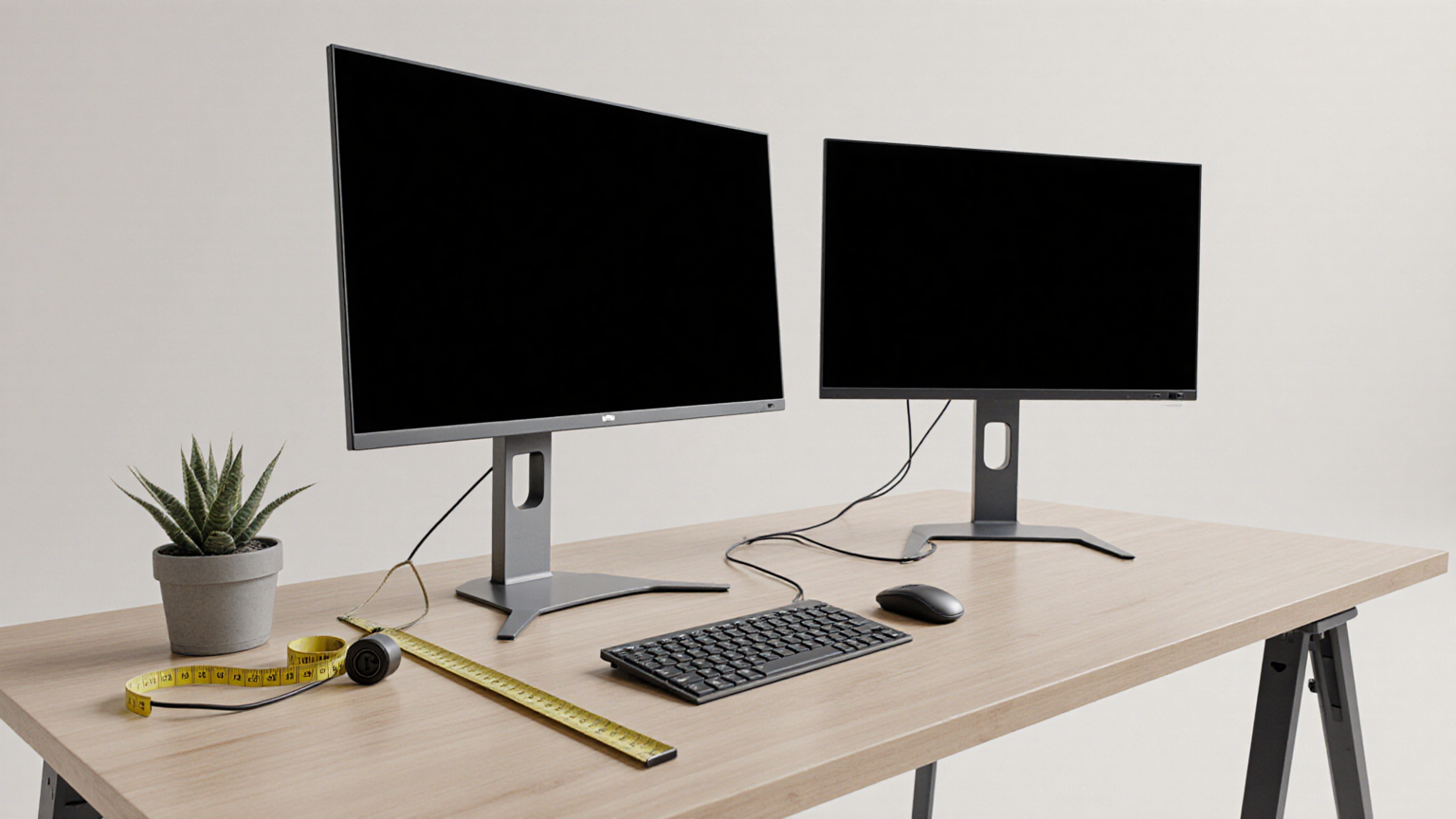
The setup decision: one 32-inch+ 4K monitor or two 24-27 inch monitors?
Dual monitors win for:
- Multi-application workflows (Slack + browser + code editor + reference doc)
- Side-by-side document/file comparison
- Bezel as natural mental separator between work contexts
- Often cheaper for total screen real estate
Single big screen wins for:
- Single immersive workflow (writing, video editing primary timeline)
- Cleaner desk aesthetic (one cable, one stand)
- Easier window management with software (Magnet, Rectangle, FancyZones)
For most office workers, dual 27-inch (2 × $400 = $800) provides more total flexibility than one 32-inch ($800-1,000). Pair with an arm mount system for adjustability.
Vertical (portrait) orientation
Some workflows benefit from vertical monitor:
Useful for
- Coding — see more lines without scrolling
- Document review — full pages without scrolling
- PDF reading — natural orientation for scientific papers
- Code review tools — diff views often vertical
- Social media monitoring — feeds are vertical
- Music production — DAW track lists
Not useful for
- Spreadsheets (rotates wrong way)
- Video editing
- Most general office use
- Image-heavy work
Setup
Most monitors with VESA mount support can rotate 90 degrees. Best setup: one 27-inch landscape primary + one 24-inch vertical secondary. Adjustable arm mount ($30-80) lets you rotate as needed.
Ergonomic mounting
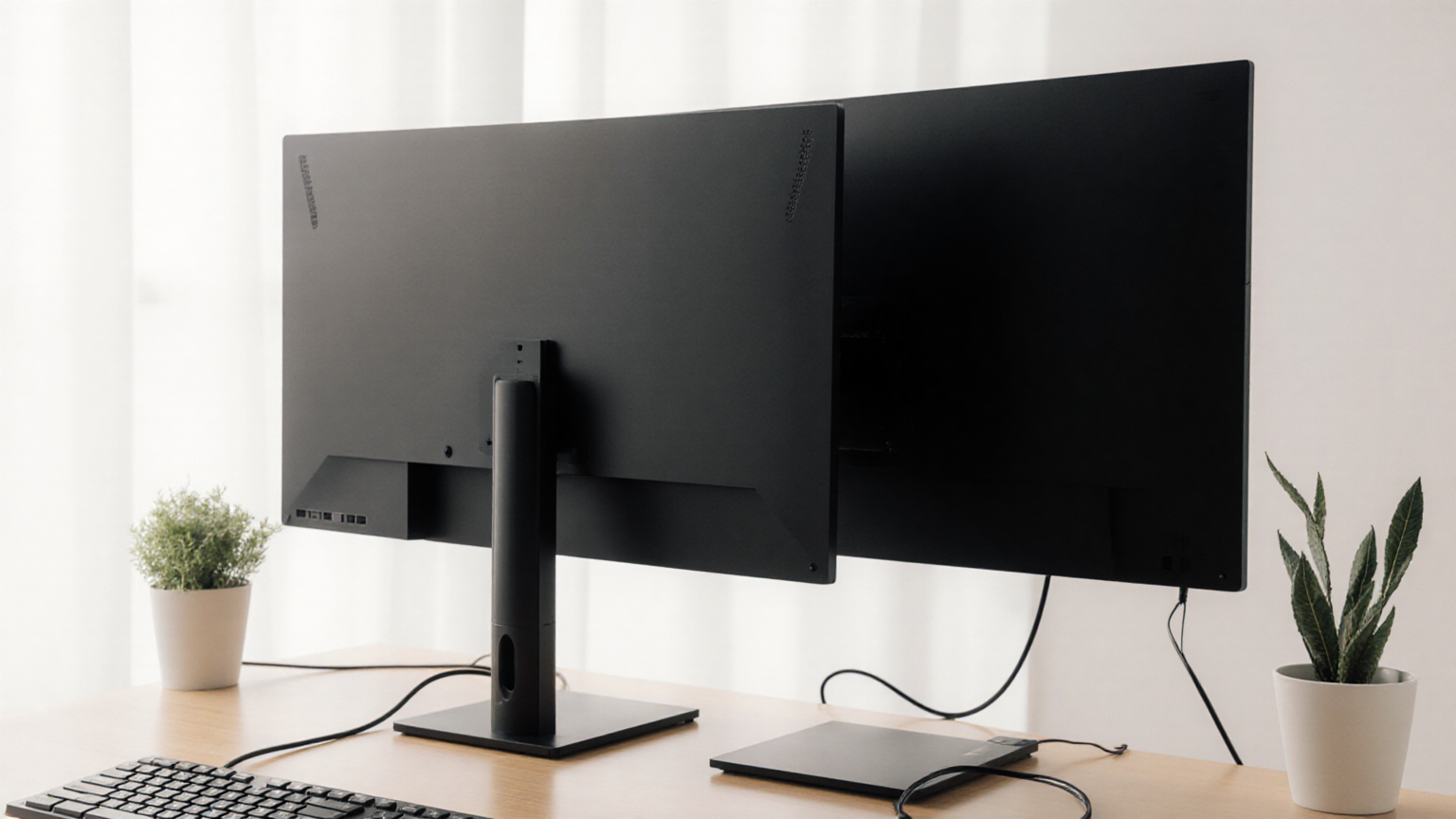
Default monitor stands are usually too short. Options:
Monitor arms
- Allow height, depth, swivel, tilt adjustment
- VESA-mount compatible (75x75 or 100x100 mm)
- Single arm: $30-80 budget, $80-150 mid-tier (Ergotron LX, Jarvis), $200+ premium (Ergotron, Humanscale)
- Dual arm: $80-200
Monitor stands (riser)
- Cheaper, less adjustable
- Stack books or sturdy box for free DIY option
- Acceptable as long as it brings monitor to eye level
Wall mounts
- Maximum desk space recovery
- Less flexibility for repositioning
For most home office users, a single Ergotron LX (or similar) at $130-180 transforms desk ergonomics. The arm pays back in productivity gains and reduced neck/shoulder strain.
Eye strain — what helps
Per AOA Computer Vision Syndrome guidance and Mayo Clinic:
20-20-20 rule
Every 20 minutes, look at something 20 feet away for 20 seconds. Reduces accommodative strain.
Brightness matching
Monitor brightness should roughly match ambient light. Bright monitor in dark room = strain; dim monitor in bright room = strain.
Blue light reduction (mostly placebo for eye strain)
Blue light filters and “night mode” reduce eye fatigue minimally per recent research. They do help sleep when used in evening — different mechanism. Don’t rely on blue light filters as primary eye-strain mitigation.
Distance and size
Per Cornell, follow the 24-30 inch viewing distance and proper screen size discussed above. Wrong distance/size is the most common cause of strain.
Lighting
Avoid glare on screen from windows or overhead lights. Pull curtains, reposition, or use anti-glare screen protector.
Rest your eyes
Take real breaks — walk, look out window, close eyes for 30 seconds.
Bottom line
For most home office workers:
- Single monitor: 27-inch 4K (163 PPI sweet spot) with IPS panel and 60 Hz
- Dual setup: two 27-inch 1440p or 4K — generally better than single 32-inch
- Vertical secondary for code/documents — adjustable arm enables flexibility
- Mounting: monitor arm at eye level (Ergotron LX or equivalent)
- Skip: high refresh rates for office, 1080p resolution for 27-inch+, gaming-focused features
For complementary home office content, see ergonomic chair data and home office internet tested.
Monitors that match the productivity research
Studies on screen real estate consistently show 27-inch 4K and 34-inch ultrawide as the two strongest setups for focused work. These three monitors anchor each category at proven price-quality intersections:
Dell U2723QE UltraSharp 27-inch 4K USB-C Hub Monitor
Price · $550-650 — productivity gold standard
+ Pros
- · 27-inch 4K (163 ppi) — text sharper than any 1080p / 1440p alternative
- · Single USB-C cable handles power + display + ethernet + USB hub
- · IPS Black panel — 2000:1 contrast, factory-calibrated Delta E < 2
− Cons
- · Premium pricing vs basic 27-inch 4K alternatives
- · 60 Hz refresh — not a gaming monitor (productivity-focused)
Paid affiliate link. Price, availability, and ratings can change; verify details on the retailer page before buying.
LG 34WP65C-B 34-inch UltraWide Curved Monitor
Price · $320-420 — ultrawide value pick
+ Pros
- · 34-inch 3440x1440 — eliminates dual-monitor bezel gap for multitaskers
- · 1500R curve reduces edge-of-screen distortion
- · HDR10, 99% sRGB, height-adjustable stand
− Cons
- · 1440p vertical resolution (not 4K) — fewer rows than 27" 4K
- · No built-in USB-C hub at this price tier
Paid affiliate link. Price, availability, and ratings can change; verify details on the retailer page before buying.
ASUS ProArt Display PA279CV 27-inch 4K
Price · $420-520 — color-accurate alternative
+ Pros
- · Factory-calibrated 100% sRGB / 100% Rec. 709
- · USB-C with 90W power delivery, KVM switch built in
- · Calman-verified — color-critical work without buying calibration tools
− Cons
- · Slightly bulkier bezel than Dell U-series
- · Color preset menus take a moment to navigate
Paid affiliate link. Price, availability, and ratings can change; verify details on the retailer page before buying.
For most knowledge workers, the Dell U2723QE is the highest-ROI single purchase. Switch to the LG ultrawide only if you ran a dual-monitor setup and the bezel gap drove you crazy.